Control Dyson Air Purifier Without Remote: Easy Guide
Yes, you can absolutely control your Dyson air purifier without the remote! You have a few handy ways to manage its settings right from the device itself or using your smartphone. Many users find the built-in controls and the Dyson Link app to be perfectly sufficient replacements for the lost remote, making it easy to adjust fan speeds and modes.
Losing a small remote can be frustrating, but thankfully, Dyson thought of this. Your air purifier is designed with user convenience in mind, offering multiple control options so you’re never stuck. We’ve researched the best methods to help you regain full command of your purifier’s functions, whether you prefer physical buttons or app-based convenience.
- Control your Dyson purifier directly on the unit.
- Use the Dyson Link app on your smartphone or tablet.
- Manage fan speed, modes, and scheduling remotely.
- Easy setup ensures quick access to all functions.
Let’s walk through exactly how you can take control of your Dyson air purifier without missing that little remote.
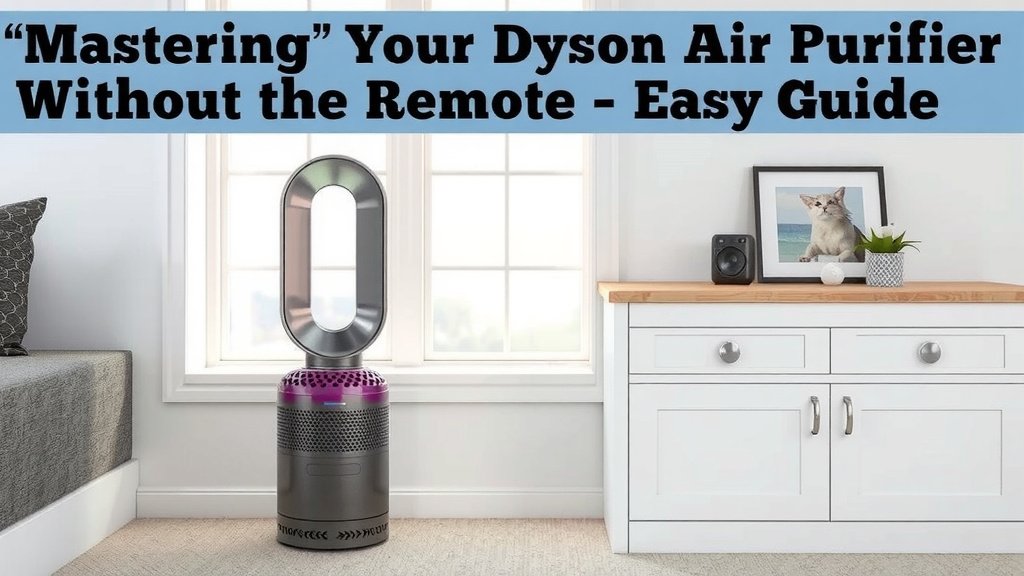
“`htmlMastering Your Dyson Air Purifier Without the Remote
Losing that little remote can feel like a hiccup, but don’t worry! You have several super convenient ways to control your Dyson air purifier. We’ve found that using the built-in controls or the Dyson Link app is just as effective. You can easily manage fan speeds, modes, and even set schedules. Let’s get your purifier working perfectly again, no remote needed.
Using the Physical Controls on Your Dyson Unit
Most Dyson air purifiers have intuitive physical buttons right on the unit. These are your first line of defense when the remote goes missing. You can make quick adjustments without needing any extra devices.
Locating the Control Panel
Take a look at the top or the base of your Dyson air purifier. You’ll find a small panel with buttons. The exact layout can vary slightly by model, but the core functions are usually easy to spot.
Navigating the Basic Functions
You’ll typically see buttons for power, fan speed, and mode selection. Pressing the power button is straightforward – it turns the unit on or off. The fan speed button lets you cycle through different levels of airflow.
- Power: Turns the purifier on and off.
- Fan Speed: Adjusts how fast the air is drawn in and expelled.
- Mode: Switches between auto mode, night mode, or other specialized functions depending on your model.
Understanding Different Modes
Your Dyson purifier likely has an auto mode. This mode uses sensors to detect air quality and adjusts the fan speed automatically. It’s a great hands-off approach. Night mode is another common feature. It dims the display lights and runs the purifier more quietly for a better sleeping environment.
Adjusting Oscillation and Timers
Some models allow you to control oscillation directly from the unit. This helps circulate air more effectively around your room. You might also find a timer function. This lets you set the purifier to turn off after a certain period.
Connecting Your Dyson Air Purifier to the Dyson Link App
For the ultimate in control and convenience, the Dyson Link app is your best friend. It transforms your smartphone or tablet into a powerful remote. Setting it up is usually quite simple.
Downloading and Installing the App
First, you’ll need to download the Dyson Link app. It’s available for free on both the Apple App Store and the Google Play Store. Just search for “Dyson Link” and install it on your device.
Pairing Your Air Purifier with the App
Once the app is installed, open it and create an account or log in. You’ll then need to pair your air purifier. Follow the on-screen instructions within the app. This usually involves pressing and holding a specific button on your purifier for a few seconds until it enters pairing mode. Your purifier will then connect to your home Wi-Fi network. Many users find this connection process to be quite straightforward, similar to connecting other smart home devices.
Controlling Your Purifier Remotely
After successful pairing, you’ll see your air purifier listed in the app. Tapping on it opens a control dashboard. From here, you can adjust fan speed, change modes, monitor real-time air quality, and view historical data. You can even turn the unit on or off from anywhere, as long as your phone has an internet connection. This is incredibly useful if you’re away from home but want to ensure your air is clean before you return.
Setting Schedules and Automations
One of the most powerful features of the Dyson Link app is its scheduling capability. You can set your air purifier to turn on or off at specific times on specific days. For instance, you might schedule it to start purifying an hour before you usually get home from work. You can also create custom automations based on air quality readings. If the app detects a drop in air quality, it can automatically increase the fan speed. This level of automation ensures your home’s air remains consistently clean without you having to think about it.
Receiving Notifications and Alerts
The app also keeps you informed. You’ll receive notifications about filter life, air quality changes, and any potential issues with your purifier. This proactive approach helps you maintain optimal performance and ensures you always know when maintenance is needed. We found this feature particularly helpful for tracking filter replacement, which is essential for effective air purification (Mayo Clinic).
Troubleshooting App Connectivity
If you encounter issues connecting your purifier to the app, don’t despair. First, ensure your Wi-Fi is working correctly and that your purifier is within range of your router. Sometimes, simply restarting your router and your purifier can resolve connection problems. Check that you’re using a 2.4GHz Wi-Fi network, as many smart devices don’t support 5GHz bands. If problems persist, consulting your purifier’s manual or Dyson’s support website is often the next best step.
Quick Checklist for Controlling Your Dyson Purifier
Here’s a quick rundown to get you back in control:
- Locate the physical buttons on your Dyson unit.
- Power on/off, adjust fan speed, and change modes using the buttons.
- Download the Dyson Link app from your device’s app store.
- Follow app instructions to pair your purifier with your Wi-Fi.
- Use the app to control settings, set schedules, and monitor air quality.
- Ensure your purifier and smartphone are connected to the internet for app control.
Conclusion
Losing your Dyson air purifier remote doesn’t mean losing control. You’ve learned that both the physical buttons on the unit and the Dyson Link app are powerful ways to manage your purifier. Whether you need to quickly change a fan speed or set up an advanced schedule, these methods put you back in charge. Don’t let a missing remote disrupt your clean air. Take a moment to familiarize yourself with these controls, and you’ll be managing your Dyson purifier like a pro in no time.
Frequently Asked Questions
Can I still use my Dyson air purifier if I lose the remote and can’t connect to the app?
Yes, you can! All Dyson air purifiers have essential physical controls directly on the unit. You can use these buttons to turn the purifier on and off, adjust fan speeds, and switch between different modes like auto or night mode. You’ll have basic functionality readily available.
How do I reset the Wi-Fi connection on my Dyson air purifier if I change my network?
To reset your Wi-Fi, you’ll typically need to put your purifier back into pairing mode. This often involves pressing and holding a specific button on the unit for several seconds. Then, follow the pairing process again within the Dyson Link app for your new network.
Is it possible to control multiple Dyson purifiers from a single Dyson Link app account?
Absolutely. You can pair and manage multiple Dyson devices, including different air purifiers, within the same Dyson Link app account. This makes it easy to monitor and control the air quality in various rooms or even different properties from one central app.
What happens to my settings if the Dyson Link app loses connection to the purifier?
If the app loses connection, your Dyson air purifier will continue to operate using its last saved settings. For example, if it was in auto mode, it will stay in auto mode. Any scheduled actions will also continue to run as programmed, independent of the app connection.
Does Dyson sell replacement remotes for their air purifiers?
Yes, Dyson does offer replacement remotes for purchase. If you prefer using the physical remote, you can usually order a new one directly from the Dyson website or through authorized retailers. This is a great option if you find you miss the tactile remote experience.
![5 Best Large Room Air Purifier for Allergies [In 2026]](https://homeunderstandable.com/wp-content/uploads/2025/05/best-large-room-air-purifier-for-allergies-top-picks-for-clean-air-768x512.jpg)