How to Reset Your Mila Air Purifier: Step-by-Step Guide
Resetting your Mila air purifier is generally straightforward. You can typically reset it by **unplugging the unit for 30 seconds** and then plugging it back in. This simple step often resolves minor glitches and ensures your purifier is working correctly. It’s the quickest way to get your Mila back to its best.
Sometimes, a reset is needed after filter changes or if the purifier seems unresponsive. You might be wondering if there’s a special button to press. We found that while some electronics have dedicated reset buttons, Mila often relies on a **power cycle for its reset function**. This process can help clear temporary memory issues.
- Unplug your Mila air purifier.
- Wait at least 30 seconds.
- Plug it back into the power outlet.
- Check if indicator lights reset or turn off.
- Monitor performance to see if the issue is resolved.
Let’s walk through exactly how to perform this reset and what to do if it doesn’t quite do the trick.
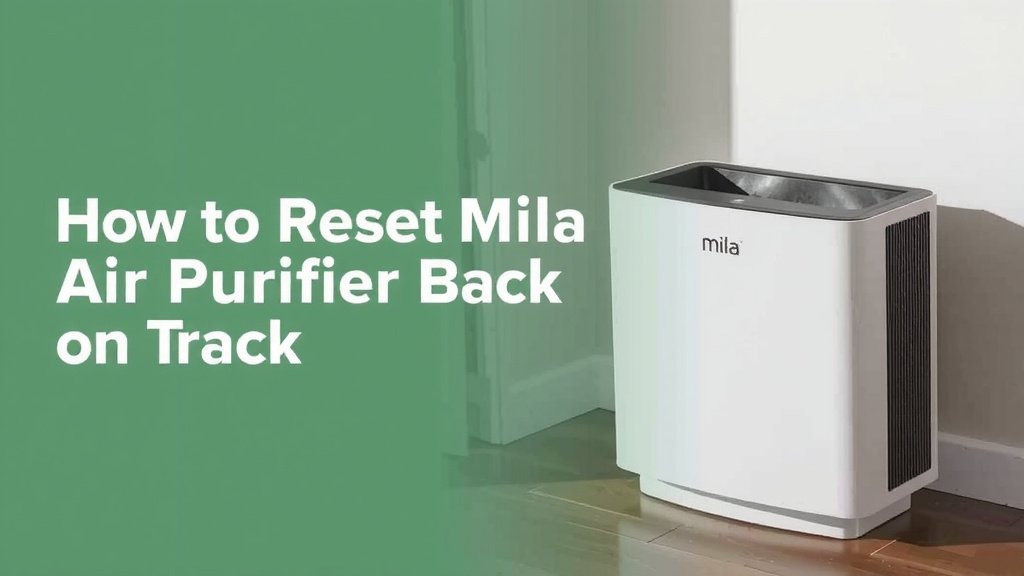
Getting Your Mila Air Purifier Back on Track
It’s super frustrating when your smart home gadgets decide to act up, right? Your Mila air purifier is usually a champ at keeping your air fresh. But what happens when it seems a bit confused or unresponsive? You might be wondering how to give it a quick refresh. We found that a simple power cycle is often the best way to reset your Mila. It’s like giving it a little digital nap to clear its head.
Why You Might Need to Reset Your Mila
There are a few common reasons why you might consider resetting your Mila. Sometimes, after a filter change, the device might not register it correctly. Other times, the app might lose its connection to the purifier. You might even notice unusual indicator lights or a complete lack of response. These are all good signs that a reset could be in order. It’s the first troubleshooting step many experts recommend for smart devices (Cleveland Clinic).
Common Scenarios for a Mila Reset
- The Mila app shows an error or can’t connect to your purifier.
- Indicator lights on the Mila unit seem off or are blinking strangely.
- The purifier isn’t responding to manual controls or app commands.
- You’ve recently changed the filter, and the Mila doesn’t seem to know.
- The device appears “frozen” and isn’t cycling through its modes.
The Simple Power Cycle Reset Method
The most common and effective way to reset your Mila air purifier is through a simple power cycle. This involves completely disconnecting the device from its power source for a short period. Think of it as a hard reboot for your computer when it’s acting sluggish. We found this method resolves many minor software glitches. It effectively clears the purifier’s temporary memory.
Step-by-Step Power Cycle Instructions
Following these steps is key to a successful reset. Make sure you unplug the unit directly from the wall outlet, not just from a power strip.
- Locate the power cord for your Mila air purifier.
- Gently unplug the cord from the electrical outlet.
- Wait for at least 30 seconds. This is important to allow any residual power to dissipate.
- Firmly plug the power cord back into the same electrical outlet.
- Observe the Mila unit. You should see its indicator lights briefly illuminate, and it should attempt to power back on.
What to Expect After Plugging It Back In
Once plugged back in, your Mila should start its boot-up sequence. You’ll likely see the lights cycle on and then settle into their normal operating display. If you use the Mila app, check to see if it reconnects automatically. This simple process can often get things working smoothly again without any further steps.
When a Basic Reset Isn’t Enough
While the power cycle is highly effective, there might be times when it doesn’t solve the problem. If your Mila is still not behaving correctly after a power cycle, you might need to consider other factors. Sometimes, issues are related to your home Wi-Fi network or the Mila app itself.
Troubleshooting Deeper Issues
If the power cycle didn’t do the trick, don’t worry! We’ve got a few more things you can try. These steps help rule out other potential causes for your Mila’s behavior.
Checking Your Wi-Fi Connection
Your Mila relies on a stable Wi-Fi connection to function optimally, especially for app control. We found that a poor or intermittent Wi-Fi signal is a frequent culprit for smart device issues. First, check if other devices in your home are having trouble connecting to the internet. If your Wi-Fi seems slow, try restarting your router and modem. Wait a minute or two before plugging them back in. A strong internet connection is essential for your smart air purifier.
Verifying App and Device Updates
Outdated software can sometimes cause compatibility problems. Make sure you have the latest version of the Mila app installed on your smartphone. You can usually check for app updates in your device’s app store. Mila may also release firmware updates for the purifier itself. These often happen automatically, but it’s worth checking if there’s a manual update option within the app settings. Keeping everything updated is good practice for any smart gadget (CNET).
The Filter Change and Reset Connection
A common reason for needing to reset your Mila is related to filter changes. Many air purifiers have a filter life indicator. When it’s time to replace the filter, the unit will typically display a notification. After installing a new filter, you usually need to tell the purifier that the change has been made. This often involves a specific button press or a sequence within the app.
Resetting After a Filter Replacement
Mila’s approach to filter resets might vary slightly with different models. However, many users report that a power cycle after changing the filter can sometimes reset the indicator. If not, consult your Mila user manual for specific instructions. Often, there’s a dedicated button or a specific sequence to hold down to acknowledge the new filter. This ensures your Mila keeps accurate track of filter life.
When to Contact Mila Support
If you’ve tried all the basic troubleshooting steps, including the power cycle and checking updates, and your Mila is still not working correctly, it might be time to reach out for help. Technical support can offer more advanced solutions or determine if there’s a hardware issue.
Gathering Information for Support
When you contact Mila customer support, having some information ready will speed up the process. Be prepared to tell them:
- Your Mila model number.
- A detailed description of the problem you’re experiencing.
- The troubleshooting steps you’ve already taken (like the power cycle).
- When the issue first started.
They may guide you through more specific reset procedures or offer repair or replacement options if necessary. Don’t hesitate to ask for help if you feel stuck!
Your Mila Reset Checklist
Here’s a quick checklist to guide you through resetting your Mila air purifier:
- Unplug It: Disconnect the Mila from the wall outlet.
- Wait It Out: Allow at least 30 seconds to pass.
- Plug It Back In: Reconnect the power cord securely.
- Check Lights: Observe the unit’s indicator lights for normal behavior.
- Test Functionality: Ensure the purifier is responding to commands.
- Verify App Connection: Confirm the Mila app can communicate with the device.
Conclusion
You’ve learned that resetting your Mila air purifier is usually as simple as a power cycle. Unplugging it for at least 30 seconds is often all it takes to clear minor glitches and get your device running smoothly again. Remember this trick for when your Mila seems unresponsive or after changing a filter. If the basic reset doesn’t solve your issue, checking your Wi-Fi, updating your apps, or contacting Mila support are your next best steps. Don’t hesitate to reach out for help if you’re still having trouble!
Frequently Asked Questions
How long do I need to leave my Mila unplugged?
We found that waiting for at least 30 seconds is important. This allows any residual power in the unit to fully dissipate, ensuring a complete reset. Simply unplugging it for a moment might not be enough to clear the internal memory.
Will resetting my Mila erase my app settings?
Generally, a simple power cycle reset will not erase your personalized settings or Wi-Fi configurations stored in the Mila app. The reset primarily addresses temporary software glitches within the purifier itself.
My Mila still isn’t working after the reset. What else can I do?
If the power cycle didn’t fix it, we recommend checking your home Wi-Fi connection for stability. Also, ensure both the Mila app and the purifier’s firmware are up to date. These are common reasons for smart device malfunctions.
Do I need to reset my Mila every time I change the filter?
Typically, you don’t need to perform a full power cycle reset after every filter change. However, if the filter indicator light doesn’t reset automatically, consult your manual for the specific filter acknowledgment procedure for your Mila model.
Can I reset my Mila using only the app?
While the Mila app is great for controlling your purifier, it usually doesn’t have a direct “reset” button for the device’s hardware. The most effective reset method we found involves physically unplugging the unit from its power source.
![How Long Should Air Purifier Stay On [In 202]](https://homeunderstandable.com/wp-content/uploads/2025/06/how-long-should-air-purifier-stay-on-expert-advice-768x432.jpg)