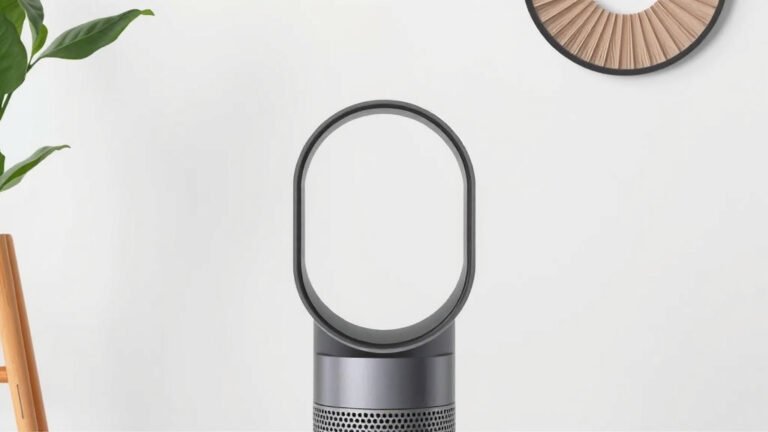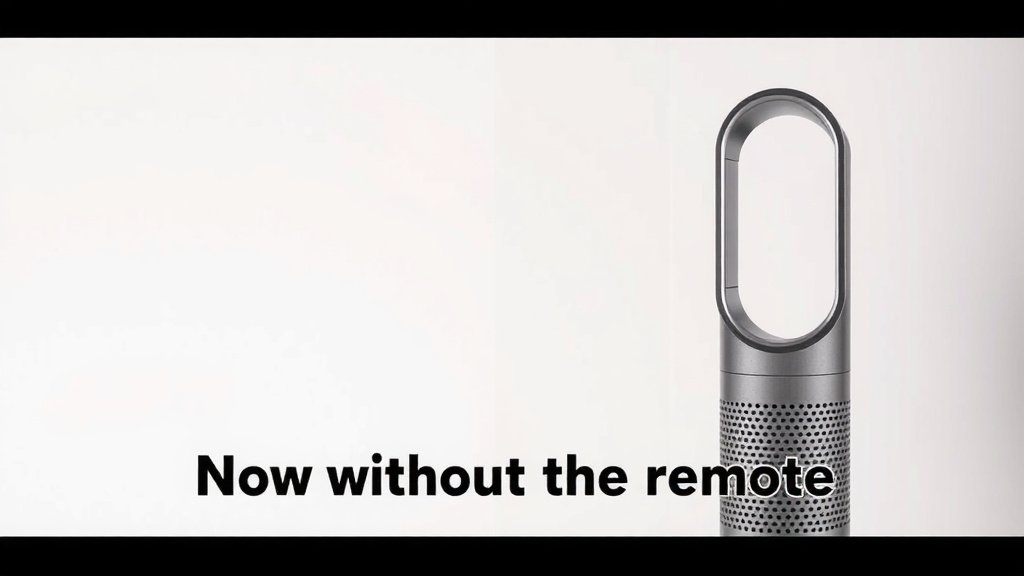
Dyson Air Purifier: How to Use Without the Remote
Yes, you can absolutely use your Dyson air purifier without the remote. Many Dyson models feature on-device controls right on the unit itself, allowing you to adjust settings like fan speed, modes, and even the oscillation. So, don’t worry if the remote goes missing – your purifier is still ready to clean your air.
Losing the remote can be a bit of a hassle, we get it! But Dyson designers have thought of this. They’ve included physical buttons or a touch-sensitive panel on the purifier itself for quick adjustments. You can often find these controls located conveniently on the top or base of your machine, making it easy to get it working.
- You can control your Dyson air purifier using buttons on the unit itself.
- Look for a touch-sensitive panel or physical buttons on the top or base.
- Common settings like fan speed and modes are usually accessible.
- This means you don’t always need the remote to get clean air.
Let’s walk through exactly where to find those controls on your specific Dyson model and how to use them so you can get back to breathing easy.
Operating Your Dyson Air Purifier Without the Remote
So, your Dyson air purifier remote has gone walkabout? Don’t panic! You can absolutely continue to use your purifier effectively using the controls built right into the machine. Dyson engineers understand that remotes can get misplaced. That’s why they’ve equipped most models with intuitive on-device controls.
These controls are designed to be easily accessible. They allow you to manage the core functions of your air purifier. This means you’re not left powerless if the remote isn’t handy. You can still ensure your home’s air stays clean and healthy.
Locating the On-Device Controls on Your Dyson Model
The exact placement of the controls can vary slightly between Dyson models. However, they are almost always located in a convenient and accessible spot. This makes them easy to find and use, even without the remote.
Controls on the Top of the Unit
Many Dyson air purifiers feature a control panel right on the top surface. This is often a sleek, touch-sensitive panel. It blends in with the overall design of the machine. You might see various icons or buttons integrated into this area. Just a gentle touch is usually all that’s needed.
On some models, you’ll find slightly raised buttons rather than a completely flat panel. Regardless of the exact design, the top of your unit is a primary place to look. It’s where you’ll likely find the essential controls.
Controls at the Base of the Unit
For some purifier designs, the controls might be located near the base. This could be on the front or the side, just above where the unit sits. These controls might be physical buttons that you press. They often have clear labels or icons indicating their function.
It’s worth doing a quick sweep around the entire unit. Sometimes, controls are subtly integrated. You might need to feel around the edges if they aren’t immediately visible. Remember, Dyson aims for a clean aesthetic, so they can be quite discreet.
Understanding Your Dyson Purifier’s On-Device Buttons
Once you’ve found the controls, you’ll notice they correspond to the functions you’d typically use the remote for. Understanding what each button or touch zone does is key to operating your purifier manually.
Power On/Off
There will always be a clearly marked power button. It’s usually a universal power symbol (a circle with a line through it). Pressing this once will turn the unit on or off. This is the most fundamental control, ensuring you can quickly activate or deactivate your purifier.
Fan Speed Adjustment
You’ll typically find controls to adjust the fan speed. This might involve a series of plus (+) and minus (-) symbols. Or, there could be different levels indicated by dots or lines. Simply tap the appropriate icon to increase or decrease the fan speed. This lets you tailor the purification power to your needs.
Oscillation Control
Many Dyson purifiers offer an oscillation feature. This helps distribute purified air more widely around the room. Look for an icon that suggests movement or rotation, often with arrows. Tapping this control will typically toggle the oscillation on or off. You can decide if you want the unit to sweep back and forth.
Mode Selection
Some models have different operating modes, like Auto mode or Night mode. Auto mode adjusts fan speed based on air quality. Night mode often dims the display and runs quietly. Controls for these modes will usually have clear labels or recognizable icons. Consult your user manual if you’re unsure about specific mode functions.
Display Settings
You may also find controls related to the display. This could include dimming the lights or turning the display off entirely, especially for Night mode. These controls are designed for convenience. They help you minimize disruption from the purifier’s lights, particularly in a bedroom setting.
Troubleshooting Common On-Device Control Issues
While the on-device controls are generally straightforward, you might encounter minor hiccups. Here are a few things to check if a button isn’t responding as expected.
Ensure the Unit is Powered
This might sound obvious, but double-check that your Dyson purifier is plugged in and receiving power. If the unit isn’t on, the controls won’t do anything. Look for any indicator lights on the base or display to confirm it’s active.
Clean the Control Panel
Dust or minor debris can sometimes interfere with touch-sensitive panels. Gently wipe the control area with a soft, dry microfiber cloth. Avoid using harsh chemicals or abrasive materials. A clean surface ensures the touch commands register correctly.
Check for Child Lock
Some Dyson models have a child lock feature to prevent accidental adjustments. If you can’t seem to change any settings, check if the child lock is activated. The method to disable it varies by model, but it often involves pressing and holding a specific button for a few seconds. Your user manual will detail this. We found that many users overlook this simple feature.
Restart the Unit
If controls are still unresponsive, a simple restart can often resolve the issue. Unplug the purifier from the wall outlet. Wait for about 30 seconds to a minute. Then, plug it back in and try the controls again. This can help reset any temporary glitches within the machine’s electronics. If controls are still unresponsive, a simple restart can often resolve the issue.
When to Consider Replacing the Remote or Seeking Support
While on-device controls are fantastic, you might still want a remote for added convenience. If you’ve thoroughly searched and the remote is truly lost, you can usually order a replacement directly from Dyson’s website or authorized retailers. It’s a good idea to have your purifier’s model number handy.
If you’re experiencing persistent issues with the on-device controls even after trying the troubleshooting steps, it might indicate a deeper problem. In such cases, reaching out to Dyson customer support is your best bet. They can provide model-specific guidance or arrange for repairs if necessary. It’s always wise to have your proof of purchase available when contacting support.
Here’s a quick checklist to get you started:
- Locate the control panel on your Dyson unit (top or base).
- Identify the power button to turn it on/off.
- Find the fan speed controls (+/- or levels).
- Check for oscillation and mode selection buttons.
- Ensure the control panel is clean and dry.
- Consult your manual if you suspect a child lock is active.
Conclusion
Don’t let a lost remote disrupt your clean air routine! You’ve learned that your Dyson air purifier is still fully controllable using its built-in physical buttons or touch panel. Finding these controls on the top or base of your unit is simple, and understanding their functions for power, fan speed, oscillation, and modes puts you back in charge. If any issues arise, a quick clean of the panel or a restart usually does the trick.
Your Dyson is designed for easy operation, even without the remote. Keep your air purified and enjoy peace of mind by utilizing these on-device controls. If you’ve tried these steps and still face issues, don’t hesitate to reach out to Dyson support for further assistance.
Frequently Asked Questions
Can I control my Dyson air purifier using a smartphone app if I lost the remote?
Yes, many newer Dyson air purifier models can be controlled via a smartphone app. If your model supports Wi-Fi connectivity, you can download the Dyson Link app. This app allows you to monitor air quality, adjust settings, and receive filter notifications, offering full control without the physical remote.
How do I know if my Dyson air purifier has a touch-sensitive control panel or physical buttons?
Generally, models with a smooth, flat top surface with icons integrated directly into it feature a touch-sensitive panel. If you see distinct raised buttons, especially around the top or base, those are physical buttons. Checking your specific Dyson model’s user manual or product page online will confirm its control type.
What should I do if the on-device buttons on my Dyson purifier are not responding at all?
If the on-device buttons aren’t responding, first ensure the unit is properly plugged in and has power. Try cleaning the control panel gently with a soft, dry cloth, as dust can sometimes interfere. If that doesn’t work, unplug the unit for about 60 seconds, then plug it back in to perform a reset.
Is there a way to get a replacement Dyson air purifier remote if I can’t find mine?
Absolutely. If you’ve searched thoroughly and the remote is truly lost, you can typically order a direct replacement from Dyson’s official website. You may also find compatible remotes from authorized third-party retailers. Be sure to have your Dyson model number ready when ordering.
Will the on-device controls allow me to set a specific schedule for my Dyson air purifier?
Typically, the on-device controls are designed for immediate adjustments like fan speed and power. Setting specific schedules or timers is usually a feature managed through the Dyson Link app or the original remote. For scheduling capabilities, you might need to use the app if your model supports it.


![5 Best Air Purifiers for Emphysema [In 2026]](https://homeunderstandable.com/wp-content/uploads/2025/04/best-air-purifiers-for-emphysema.jpg)