Master Your Dyson Air Purifier: Setup & Operation Guide
Operating your Dyson air purifier is surprisingly simple once you get the hang of it. You can easily control its settings using the remote control or the Dyson Link app for remote operation. Most models allow you to adjust fan speed, set a timer, and activate auto mode right from the device itself. For many users, understanding the basic functions is the key to enjoying cleaner air.
Beyond just turning it on and off, familiarizing yourself with your Dyson’s capabilities can really enhance your experience. Did you know you can often view your home’s air quality reports directly on the purifier or through the app? We found that utilizing the auto mode helps the purifier automatically respond to changes in air quality, providing a set-it-and-forget-it convenience.
TL;DR:
- Use the remote or Dyson Link app for control.
- Adjust fan speed, set timers, and use auto mode.
- Check your air quality reports easily.
- Auto mode adapts to changing air conditions.
Let’s walk through exactly how to get the most out of your Dyson air purifier, step by step.
Mastering Your Dyson Air Purifier: A Simple Guide
Understanding how to operate your Dyson air purifier will help you achieve the best possible air quality in your home. It’s designed for ease of use. Most of the magic happens with just a few button presses or a quick tap on your smartphone. We’ve found that getting comfortable with its functions makes a big difference in daily life.
Let’s break down the controls and features so you can start breathing easier right away. You’ll quickly see how intuitive these machines truly are.
Getting Started: The Remote and Device Controls
Your Dyson air purifier likely came with a sleek, magnetic remote control. This is your primary tool for immediate adjustments. The remote sticks right onto the top of the machine, so you always know where it is. Simple, right?
Using the Remote Control
The remote is designed for essential functions. You’ll find buttons for power, fan speed, oscillation, and mode selection. These are the settings you’ll likely use most often. Think of it as your express lane to cleaner air.
- Power: A simple tap turns the purifier on or off.
- Fan Speed: Adjust this to control how much air the purifier circulates. Higher speeds mean more air filtered, but also more noise.
- Oscillation: This feature allows the purifier to sweep back and forth, distributing cleaner air across a wider area.
- Auto Mode: More on this later, but it’s a favorite for many.
Direct Controls on the Purifier
Can’t find the remote? No worries! Most Dyson purifiers also have touch-sensitive controls directly on the unit. These mirror the remote’s functions, offering a backup if the remote goes missing.
You can usually power the unit on and off, adjust fan speed, and activate other modes right from the device itself. It’s a handy feature when you’re right beside the purifier.
Harnessing the Power of Auto Mode
Auto mode is where your Dyson air purifier truly shines in its “set-it-and-forget-it” capability. We found this to be a **game-changer** for maintaining consistent air quality without constant fiddling.
How Auto Mode Works
When you activate auto mode, the purifier uses its built-in sensors to monitor your indoor air quality. It detects particles and gases. If it senses a drop in air quality, it automatically increases fan speed to filter the air more effectively. Once the air is clean, it returns to a lower, quieter setting.
Benefits of Using Auto Mode
The main benefit is convenience. You don’t have to manually adjust settings. It also means your purifier is **always working** to keep your air as clean as possible. Research from sources like the Environmental Protection Agency (EPA) highlights the importance of continuous air filtration for removing pollutants.
This mode is especially useful when you’re not home or when air quality changes unexpectedly, such as during cooking or when pollen counts are high outside.
Exploring Advanced Features: Scheduling and Night Mode
Beyond the basics, your Dyson air purifier offers features to tailor its operation to your lifestyle. These can enhance both comfort and efficiency.
Setting a Sleep Timer
Want the purifier to turn off automatically after a certain period? Use the sleep timer. This is perfect for when you’re going to bed or leaving the house. You can set it for specific intervals, ensuring it doesn’t run longer than you need.
Setting a timer is straightforward. You typically select the desired duration using the remote or the app, and the purifier will shut down once that time elapses. This is a **simple way to save energy**.
Utilizing Night Mode
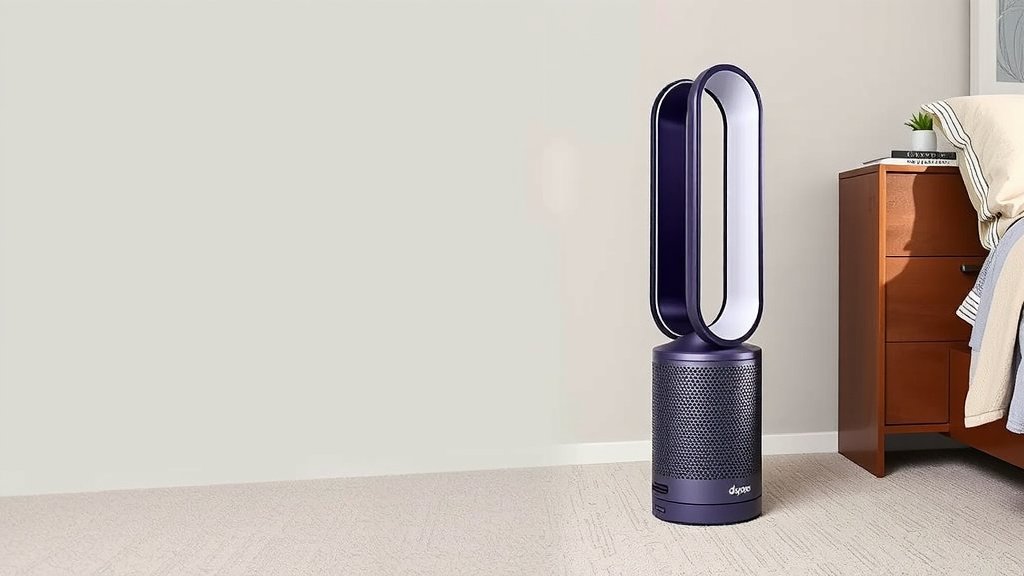
For bedrooms or quiet spaces, Night Mode is essential. When activated, it dims the display lights to avoid distraction. The purifier also operates at its quietest fan speeds. This ensures you can sleep soundly without being disturbed by bright lights or excessive noise.
Connecting with the Dyson Link App
For even greater control and insight, connect your Dyson air purifier to the Dyson Link app on your smartphone. This unlocks a world of features, including remote operation from anywhere.
Downloading and Connecting the App
First, download the Dyson Link app from your smartphone’s app store. Follow the on-screen instructions to connect your purifier to your home Wi-Fi network. This process usually involves holding a button on the purifier for a few seconds.
Remote Control and Monitoring
Once connected, the app allows you to control all purifier functions remotely. You can turn it on or off, change fan speeds, set timers, and switch modes, all from your phone. It’s incredibly handy when you’re away from home and want to ensure a clean environment upon your return.
Air Quality Reports and History
A standout feature of the Dyson Link app is its ability to display detailed air quality reports. You can see real-time data on particle and gas levels in your home. The app also provides historical data, showing you trends over time. Many health organizations, such as the World Health Organization (WHO), emphasize the importance of monitoring air quality for health and well-being.
Viewing these reports can help you understand what might be affecting your air quality and how your purifier is working to improve it. It offers **peace of mind**.
Understanding the Display and Indicators
Your Dyson air purifier has a display that provides important information at a glance. Understanding these indicators helps you know what the purifier is doing and the state of your air.
Interpreting Air Quality Readings
The display often shows an air quality index (AQI) number or color code. Different colors usually represent different levels of pollution, from good to poor. Knowing these codes means you can quickly assess your environment.
Filter Life Indicator
A crucial indicator is the filter life. Your purifier will show you how much life is left in your filter. When the filter needs replacing, you’ll receive a clear notification. Replacing filters promptly is vital for maintaining the purifier’s effectiveness, as clogged filters can reduce airflow and purification capabilities (Cleveland Clinic).
Quick Checklist for Daily Operation
Here’s a simple checklist to help you get the most out of your Dyson air purifier every day:
- Turn on the purifier when you enter the room.
- Set it to Auto Mode for effortless air quality management.
- Check the air quality display or app daily.
- Adjust fan speed manually if needed for quick purification.
- Use the sleep timer for overnight operation.
- Note when the filter life indicator is low for timely replacement.
Conclusion
You’ve learned how easy it is to operate your Dyson air purifier. Using the remote or the Dyson Link app gives you full control. Auto mode keeps your air clean effortlessly. Remember to utilize the sleep timer and Night Mode for personalized comfort. Pay attention to air quality reports and filter life indicators. With these simple steps, you’re well on your way to enjoying consistently cleaner air in your home. Now, go ahead and adjust your settings for optimal air quality!
Frequently Asked Questions
How do I know if my Dyson air purifier is working correctly?
Your Dyson air purifier will typically indicate it’s working by the fan running and clean air being emitted. You can often see the air quality readings improve in real-time on the device display or through the Dyson Link app. You should also hear the fan operating, though it’s designed to be quiet, especially in lower settings.
What should I do if my Dyson air purifier is making a strange noise?
If your purifier starts making unusual noises, first check that it’s on a stable surface. Then, inspect the filter to ensure it’s properly seated and not damaged. Sometimes, a foreign object might have gotten into the unit. If the noise persists, consult your manual or Dyson support for further troubleshooting.
How often do I need to replace the filter in my Dyson air purifier?
The frequency of filter replacement depends on your usage and the air quality in your home. Your Dyson air purifier has a built-in filter life indicator that will alert you when it’s time for a change. We recommend checking this indicator regularly through the device’s display or the Dyson Link app.
Can I leave my Dyson air purifier on all the time?
Yes, you can generally leave your Dyson air purifier on all the time, especially if you use Auto Mode. This mode intelligently adjusts the fan speed based on detected air quality, ensuring continuous purification without constant manual adjustments. Leaving it on helps maintain a consistent level of clean air.
Is it better to use Auto Mode or manually set the fan speed on my Dyson?
For most situations, Auto Mode is the most convenient and effective option. It automatically senses changes in air quality and adjusts the fan speed accordingly. Manually setting the fan speed is useful if you need quick purification or want to ensure a specific noise level.