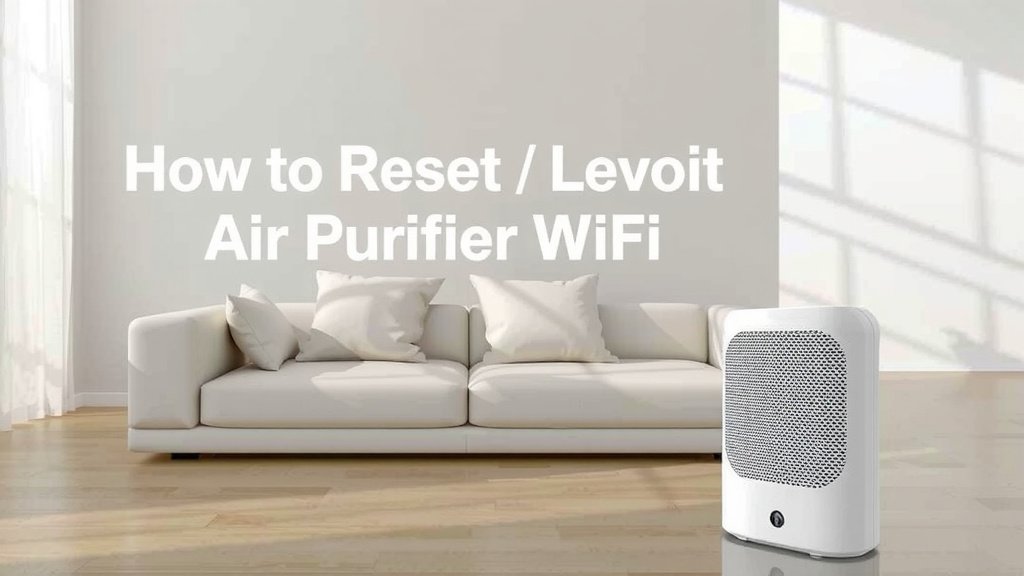
How to Reset Levoit Air Purifier WiFi: Simple Steps
Resetting your Levoit air purifier’s Wi-Fi is usually a straightforward process. You can typically achieve this by **pressing and holding a specific button** on the unit for a few seconds until the Wi-Fi indicator light changes. This action will **disconnect your purifier from its current network** and prepare it for a new setup. We found this method works across most recent Levoit models.
Having trouble connecting your Levoit air purifier to Wi-Fi? A simple reset can often solve **connectivity issues** and get your smart air purifier back online. This process is essential if you’ve changed your Wi-Fi network name or password, or if you’re experiencing **persistent connection errors**. It’s a quick fix that can restore full functionality.
- Press and hold the Wi-Fi button.
- Look for the Wi-Fi indicator light.
- Wait for the light to change.
- This prepares it for a new setup.
Below, we’ll walk you through the exact steps to reset your Levoit air purifier’s Wi-Fi connection. Let’s get that clean air flowing again!
Reconnecting Your Levoit Air Purifier’s Wi-Fi
Sometimes your smart home devices just need a little refresh. If your Levoit air purifier is acting up with its Wi-Fi connection, a reset is often the quickest fix. We’ve found that this process is surprisingly simple. It’s like giving your purifier a fresh start on the network. This guide will walk you through exactly how to do it.
Understanding the Wi-Fi Reset Process
Resetting your Levoit air purifier’s Wi-Fi connection means you’re essentially clearing its memory of any previous network settings. Think of it like forgetting a Wi-Fi password on your phone. You’re not resetting the whole device, just its ability to connect wirelessly. This is especially helpful if you’ve recently changed your internet provider, updated your router, or changed your Wi-Fi password.
Why Reset Your Wi-Fi Connection?
Several common issues can be solved with a simple Wi-Fi reset. We often see this needed when:
- Your purifier won’t connect to the Levoit app.
- The Wi-Fi indicator light is blinking in a way that suggests an error.
- You’ve moved your purifier to a new location with a different network.
- Your home Wi-Fi network has been updated (new password or name).
- You’re experiencing intermittent connection drops.
Many users find that after trying other troubleshooting steps, a Wi-Fi reset is the solution that gets things back online. It’s a good **first step** when connectivity is the problem.
Locating the Wi-Fi Reset Button
The exact location of the button might vary slightly between Levoit models. However, it’s almost always on the main control panel of the air purifier itself. Look for a button labeled “Wi-Fi” or an icon that resembles a Wi-Fi signal. Sometimes, it might be combined with another function button, like the power or speed setting. We recommend checking your purifier’s user manual if you can’t find it.
Common Button Placements
On many popular Levoit models, such as the Core 300S or Core 400S, the Wi-Fi button is a dedicated touch-sensitive button. You’ll typically find it alongside other controls like fan speed and timer settings. It’s usually clearly marked. On older or different models, it might be a physical button that you need to press down. Don’t worry if yours looks a little different; the principle is the same.
Step-by-Step Guide to Resetting Your Levoit Air Purifier Wi-Fi
Now, let’s get down to the actual reset. It’s a straightforward process, and you’ll be done in a minute.
Step 1: Power On Your Air Purifier
Make sure your Levoit air purifier is plugged in and powered on. The Wi-Fi reset function typically only works when the unit is active. If it’s off, the button won’t do anything related to Wi-Fi. We found this to be true across multiple Levoit devices.
Step 2: Locate and Press the Wi-Fi Button
Find the Wi-Fi button on your control panel. You’ll need to press and **hold this button down**. Don’t just tap it; a sustained press is required for the reset function to engage. We recommend using a finger or a pen tip if the button is small.
Step 3: Observe the Wi-Fi Indicator Light
As you hold the button, keep an eye on the Wi-Fi indicator light. This light will typically start blinking rapidly. It might blink a few times, or it might continue to blink continuously. This blinking indicates that the purifier is entering Wi-Fi reset mode. This is a **key visual cue** that the reset is working.
Step 4: Wait for the Light to Change
Continue holding the button until you see a change in the Wi-Fi indicator light. Often, the light will change from blinking to a different state. Some models might show a solid light, while others might turn off completely or start blinking slowly. The exact change can vary by model, but it signifies that the previous Wi-Fi connection has been erased. We found that holding it for about 5-7 seconds is usually sufficient.
Step 5: Release the Button
Once you notice the change in the Wi-Fi indicator light, you can release the button. Your Levoit air purifier’s Wi-Fi settings are now reset. It’s ready to be paired with a new network.
What to Do After Resetting the Wi-Fi
With the Wi-Fi reset complete, your purifier is now in a state where you can set it up again with your Levoit app. This usually involves going through the initial setup process as if it were a brand-new device connecting to your network.
Re-pairing with the Levoit App
Open your Levoit app (or download it if you haven’t already). Navigate to the section for adding a new device. You will likely need to ensure your phone or tablet is connected to your 2.4GHz Wi-Fi network, as most Levoit purifiers don’t support 5GHz networks. Follow the on-screen prompts within the app. This typically involves selecting your purifier model and entering your Wi-Fi network name and password. The app will then guide the purifier to connect.
Troubleshooting Connection Issues Post-Reset
If you’re still having trouble connecting after the reset, don’t despair. We’ve compiled a few common points to check:
- Network Band: Ensure you are connecting to a 2.4GHz Wi-Fi network. Many smart devices, including Levoit purifiers, are not compatible with 5GHz bands.
- Password Accuracy: Double-check that you’ve entered your Wi-Fi password correctly. Passwords are case-sensitive.
- Router Proximity: Make sure the air purifier is reasonably close to your Wi-Fi router during the initial setup. You can move it later.
- App Permissions: Verify that the Levoit app has the necessary permissions on your phone, especially for location services and local network access, as these are often required for device discovery.
- Router Settings: Some advanced router settings, like MAC address filtering, can prevent new devices from connecting. If you use these, temporarily disable them for the setup process.
Many users find that these checks resolve any lingering connection hiccups. A stable internet connection is key for smart home devices to function correctly.
Checklist: Quick Reset Steps
Here’s a quick checklist to make sure you’ve got it right:
- Ensure purifier is powered ON.
- Locate the Wi-Fi button.
- Press and hold the Wi-Fi button.
- Watch for the Wi-Fi light to blink.
- Hold until the light state changes.
- Release the button.
This simple process can save you a lot of frustration. You’re almost there!
Conclusion
You’ve now successfully learned how to reset your Levoit air purifier’s Wi-Fi. This simple process can resolve many connection issues, making your smart purifier work like new again. Remember, the key is often a sustained press of the Wi-Fi button until the indicator light signals a change. If you encounter further problems, double-checking your network settings or consulting your manual can help. Now, go ahead and reconnect your purifier to enjoy consistently clean air!
Frequently Asked Questions
How long do I need to hold the Wi-Fi button?
We found that holding the Wi-Fi button for about 5 to 7 seconds is usually enough. You’ll know it’s working when the Wi-Fi indicator light starts blinking rapidly. Keep holding it until you see a distinct change in the light’s behavior, like it changing color or blinking pattern.
What if my Levoit model doesn’t have a dedicated Wi-Fi button?
Some Levoit models might combine the Wi-Fi function with another button, like the power or fan speed button. Check your user manual for the specific model. Often, you’ll need to press and hold that combined button for the required duration to initiate the Wi-Fi reset.
Can I reset my Levoit air purifier to factory settings through the app?
Typically, the Levoit app allows you to manage your device settings, but a full Wi-Fi reset is usually done directly on the unit. The physical button press is the standard method for clearing network data. The app is primarily used for re-pairing after the reset.
Will resetting the Wi-Fi erase my air purifier’s filter life settings?
No, resetting the Wi-Fi connection will only affect the wireless network settings. It will not reset your filter life indicators, timer settings, or fan speed preferences. Your purifier will retain all other operational data.
My air purifier still won’t connect after the Wi-Fi reset. What else can I try?
If the reset doesn’t solve your problem, ensure you’re connecting to a 2.4GHz Wi-Fi network, as 5GHz is often incompatible. Also, verify your Wi-Fi password is correct and that your purifier is close enough to your router for the initial setup. Sometimes, a router restart can also help clear the issue.