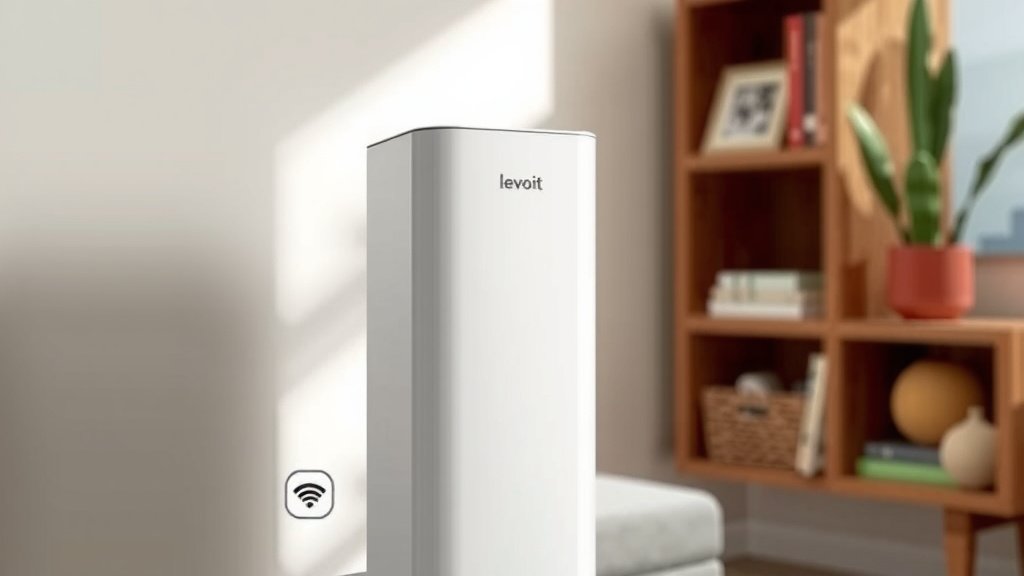
Connect Your Levoit 200S to Wi-Fi: Step-by-Step Guide
Connecting your Levoit 200S air purifier to WiFi is surprisingly straightforward. You’ll need your home WiFi network name and password ready. The process involves downloading the VeSync app and following a few simple on-screen prompts. This lets you control your purifier remotely and access smart features.
Once connected, your Levoit 200S becomes a truly smart device. You can check your air quality from anywhere. You can also set schedules and change fan speeds using just your smartphone. Many users find this remote control incredibly convenient for daily use and peace of mind.
- Download the VeSync app.
- Ensure your purifier is on and nearby.
- Follow the app’s step-by-step guide.
- Enter your WiFi password when prompted.
- Confirm connection within the app.
Ready to get your Levoit 200S online? Let’s walk through exactly how this works, step by step, so you can enjoy all its smart features in no time.
Getting Your Levoit 200S Connected to WiFi
So, you’ve got your Levoit 200S air purifier, and you’re ready to tap into its smart capabilities. Connecting it to your home WiFi is the key to unlocking remote control and a whole suite of convenient features. Let’s get this done!
Before You Begin: What You’ll Need
It’s always a good idea to have a few things ready before you start. This makes the setup process much smoother and less frustrating. Think of it as preparing your ingredients before you start cooking.
- Your WiFi Network Name (SSID): This is the name you see when you look for available networks on your phone or computer.
- Your WiFi Password: Make sure you know this correctly. Passwords are case-sensitive, so accuracy is key!
- Your Smartphone or Tablet: This will be your control center for the VeSync app.
- The Levoit 200S Air Purifier: Ensure it’s plugged in and powered on.
The VeSync App: Your Control Hub
The Levoit 200S connects through the VeSync app. This app is where all the magic happens, allowing you to manage your air purifier from anywhere. If you haven’t already, you’ll need to download it.
Downloading the VeSync App
You can find the VeSync app on both major app stores. It’s free to download and use.
- For iOS devices (iPhones, iPads), search for “VeSync” in the Apple App Store.
- For Android devices, search for “VeSync” in the Google Play Store.
Once downloaded, open the app. You’ll likely need to create an account or log in if you already have one. This account links your devices to your personal control panel.
Pairing Your Levoit 200S to WiFi: Step-by-Step
Now for the main event! Following these steps will get your Levoit 200S online in no time. We’ve broken it down so it’s super easy to follow.
Initiating the Pairing Process
On your Levoit 200S air purifier, you need to put it into pairing mode. This tells the purifier that it’s ready to connect to a new network.
Locate the WiFi button on your Levoit 200S. It might be a dedicated button or part of the control panel. Press and hold this button for about 3-5 seconds. You’ll usually see an indicator light next to the WiFi symbol start to flash. This flashing light is your cue that it’s ready to pair.
Connecting Through the VeSync App
With your purifier in pairing mode and the VeSync app open on your smartphone, it’s time to guide the app to find your purifier.
- In the VeSync app, tap the “+” icon or the option to “Add Device.” This is usually found in the top corner of the main screen.
- The app will present you with a list of devices. Select “Air Purifier” and then find the Levoit 200S model.
- The app will ask you to confirm that the indicator light on your purifier is flashing. This is important because it ensures your device is indeed in pairing mode. Tap “Confirm Indicator Rapidly Blink” (or similar wording).
Entering Your WiFi Credentials
This is where your network name and password come into play. Accuracy here is key to a successful connection.
The app will prompt you to select your home WiFi network from a list. Choose your network name (SSID). Then, carefully enter your WiFi password. Double-check it for any typos! We’ve all been there, struggling with a password that looks right but isn’t quite. A common mistake is mixing up uppercase and lowercase letters. Make sure you’re using the exact password for your network.
Once you’ve entered the correct information, tap “Next” or “Connect.” Your phone will now communicate this information to your Levoit 200S, which will then attempt to connect to your WiFi router.
The Connection Process
This part usually takes a minute or two. You’ll see the indicator light on your Levoit 200S change. It typically stops flashing rapidly and might turn solid, indicating a successful connection. The VeSync app will also show progress and confirm when the connection is complete.
If the connection fails, don’t panic! It’s a common hiccup that can usually be resolved with a few troubleshooting steps. We’ll cover those shortly.
Troubleshooting Common Connection Issues
Sometimes, things don’t go perfectly on the first try. If your Levoit 200S isn’t connecting, here are some things to check.
Checking Your WiFi Network
The Levoit 200S, like many smart home devices, typically connects to a 2.4GHz WiFi network. Most routers broadcast both 2.4GHz and 5GHz bands. Ensure you are trying to connect to the 2.4GHz band. Some routers combine these under one name, which can sometimes cause issues.
We found that sometimes, simply restarting your WiFi router can resolve connection problems. Unplug your router, wait about 30 seconds, and then plug it back in. Allow it a few minutes to fully boot up before trying to pair your air purifier again.
Proximity and Signal Strength
Make sure your Levoit 200S is reasonably close to your WiFi router during the initial setup. A weak WiFi signal can prevent devices from connecting. Once connected, you can usually move the purifier to its desired location, provided the signal is still strong enough there.
Password Accuracy is Key
We can’t stress this enough: double-check your WiFi password. Even a single incorrect character will prevent the connection. If you’re unsure, try connecting another new device to your WiFi using the same password to confirm it’s correct.
Restarting the Process
If all else fails, try resetting the Levoit 200S’s network settings. There’s usually a specific button combination or a menu option within the device itself to clear existing WiFi configurations. Consult your Levoit 200S manual for the exact steps on how to perform a network reset. After resetting, repeat the pairing process from the beginning.
What to Do After Connecting
Congratulations! Your Levoit 200S is now connected to your WiFi. You’ve unlocked its smart features. What’s next?
Exploring the VeSync App Features
Open the VeSync app and tap on your newly added Levoit 200S. You’ll find a dashboard with various controls and information.
- Remote On/Off: Turn your purifier on or off from anywhere.
- Fan Speed Adjustment: Change the fan speed to Low, Medium, High, or Auto mode.
- Air Quality Monitoring: View real-time air quality data (PM2.5 levels) for your room.
- Scheduling: Set custom schedules for your purifier to turn on or off at specific times.
- Filter Life: Check the remaining life of your filters and get notifications when it’s time for a replacement.
Setting Up Schedules and Timers
One of the most convenient features is scheduling. You can set your purifier to run when you’re typically at home or to turn off when you leave for work. This ensures you’re breathing cleaner air without needing to remember to manually adjust settings.
Understanding Air Quality Readings
The app provides PM2.5 readings, which measure fine particulate matter. Many health organizations, including the Environmental Protection Agency (EPA), recommend monitoring PM2.5 levels for indoor air quality.
Lower PM2.5 numbers are better. The VeSync app often uses color codes (like green for good, yellow for moderate, red for unhealthy) to make these readings easy to understand at a glance.
Quick Checklist for WiFi Connection
Here’s a quick rundown to ensure you’ve got everything covered for a smooth connection:
- Download and install the VeSync app.
- Create or log into your VeSync account.
- Plug in and turn on your Levoit 200S.
- Press and hold the WiFi button to enter pairing mode.
- Connect to your 2.4GHz WiFi network within the app.
- Enter your WiFi password accurately.
- Wait for the confirmation message in the app.
Conclusion
You’ve successfully connected your Levoit 200S to WiFi! By following these steps, you’ve gained the power to control your air purifier from anywhere using the VeSync app. This means you can easily adjust settings, monitor air quality, and set schedules for cleaner air whenever you need it. Enjoy the convenience and peace of mind that comes with your smarter, connected home. Your next step is to dive into the VeSync app and explore all the personalized features you’ve just enabled!
Frequently Asked Questions
What if my Levoit 200S won’t connect to WiFi?
Check that you’re connecting to a 2.4GHz network, as many smart devices don’t support 5GHz. Also, ensure your WiFi password is entered exactly correctly and that your purifier is within a reasonable range of your router during setup. Sometimes, a simple router restart can resolve connection issues.
Do I need to create a VeSync account to connect my purifier?
Yes, you will need to create or log into a VeSync account. This account is what links your Levoit 200S to the app, allowing you to control it remotely and access its smart features. It’s how the app identifies and communicates with your specific device.
How do I put my Levoit 200S into WiFi pairing mode?
To enter pairing mode, you need to press and hold the WiFi button on your Levoit 200S air purifier for about 3 to 5 seconds. You’ll know it’s in pairing mode when the WiFi indicator light starts flashing, usually rapidly.
Can I connect my Levoit 200S to a 5GHz WiFi network?
Typically, the Levoit 200S, like many smart home devices, connects to a 2.4GHz WiFi band. If your router broadcasts both 2.4GHz and 5GHz networks, make sure you select the 2.4GHz network during the connection process in the VeSync app.
What should I do if the VeSync app says my purifier is offline after connecting?
If your purifier shows as offline in the app after a successful connection, try power cycling both your purifier and your WiFi router. Ensure your home WiFi is working correctly and that the purifier is still within range of a strong signal. You may need to repeat the pairing process if the issue persists.