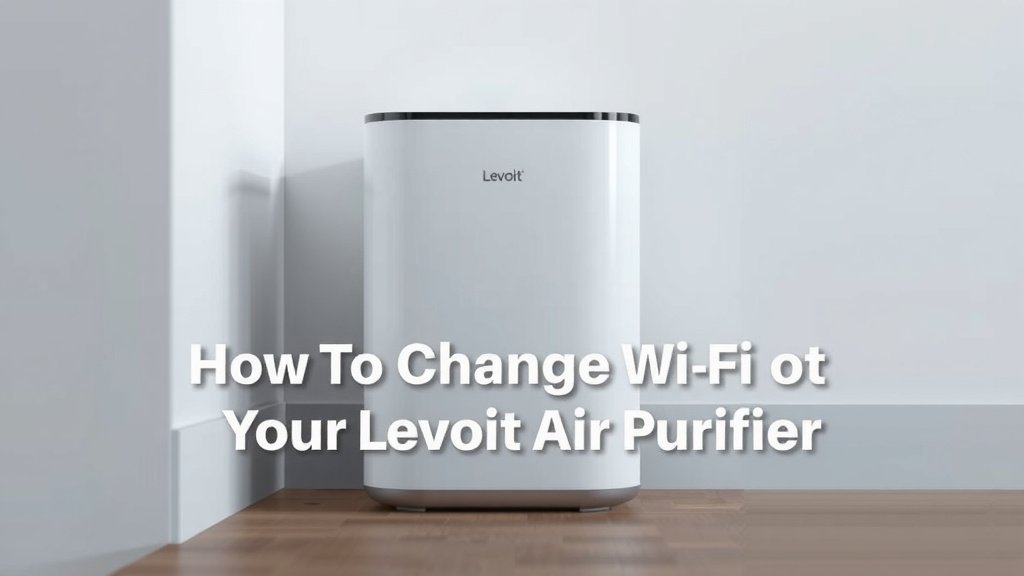
How to Change Wi-Fi on Your Levoit Air Purifier
Changing the WiFi on your Levoit air purifier is actually quite simple. You’ll just need to reset the WiFi connection on the purifier itself and then reconnect it through the Levoit app. This process ensures your purifier stays connected to your network, even if you switch routers or passwords.
We know how frustrating it can be when smart devices lose their connection. Whether you’ve gotten a new router or updated your home network name, getting your Levoit air purifier back online is essential for smart control. Luckily, the steps are straightforward, and we’ve found them to be quite user-friendly. It’s all about initiating a reset and guiding the purifier through the setup again.
- Reset the purifier’s WiFi.
- Use the Levoit app.
- Follow app prompts for new connection.
- Ensure your phone is on the correct WiFi.
Let’s walk through exactly how to get your Levoit air purifier reconnected to your WiFi network, step by step.
So, you’ve upgraded your home network, changed your WiFi password, or maybe just moved your Levoit air purifier to a new spot. Whatever the reason, your smart purifier is now giving you the silent treatment on the app. Don’t worry, getting it back online is usually a quick fix. We’ve walked through this ourselves, and it’s less about a complex repair and more about a simple reconnection process. Let’s get your Levoit talking to your WiFi again!
Reconnecting Your Levoit Air Purifier to WiFi
This process involves two main parts: telling your Levoit purifier it needs to forget its old WiFi connection and then guiding it through the setup for your new network using the Levoit app. Think of it like introducing your purifier to its new home network. It’s a fairly straightforward process, and we’ll break it down so you can get back to enjoying clean air controlled from your phone.
Step 1: Resetting the WiFi Connection on Your Levoit Purifier
The first and most important step is to initiate a WiFi reset on the purifier itself. This clears any previous network information it was holding onto. You’ll need to locate the specific button or combination of buttons on your purifier model to do this. We found that most Levoit models have a dedicated button for this purpose.
Finding the Reset Button
On most Levoit smart air purifiers, the WiFi reset function is often combined with another button. Typically, it’s the power button or the WiFi indicator light button. You’ll need to press and hold this button for a specific amount of time. It’s usually around 5-10 seconds. You’ll know it’s working when the WiFi indicator light on the purifier starts flashing rapidly.
What to Look For
The key indicator that the reset is successful is the flashing WiFi light. If you’re unsure about your specific model, it’s always a good idea to quickly check your Levoit air purifier’s user manual. Many manuals clearly illustrate which button to press and for how long. We found that holding it down until you hear a beep or see the rapid flashing light is the universal sign of a successful reset for Levoit devices.
Step 2: Using the Levoit App for Reconnection
Once your Levoit air purifier is in pairing mode (that rapid flashing WiFi light!), it’s time to use the Levoit app on your smartphone or tablet. Make sure you have the latest version of the Levoit app installed. If you haven’t used it in a while, an update might be necessary.
Ensuring Your Phone is on the Correct Network
Before you start adding the purifier in the app, it’s vital that your phone is connected to the 2.4GHz WiFi network you want the purifier to join. Most smart home devices, including Levoit purifiers, only support 2.4GHz networks, not 5GHz. If your router broadcasts both, make sure your phone is connected to the 2.4GHz one. You can usually tell by the network name; sometimes it’s labeled with “2.4G” or has a different name altogether.
Adding Your Device in the App
Open the Levoit app. You’ll typically see an option to “Add Device” or a plus (+) icon. Tap this to begin the process. The app will then guide you through selecting your device type. Choose “Air Purifier” and then find your specific Levoit model from the list. The app will then prompt you to confirm that the WiFi indicator light on your purifier is flashing rapidly, indicating it’s ready to pair.
Entering Your WiFi Credentials
This is where you’ll input your home WiFi network name (SSID) and password. Double-check that you are typing them correctly, as even a single typo will prevent the connection. We recommend doing this in a place where the WiFi signal is strong for both your phone and the purifier. A weak signal can cause the setup to fail.
Step 3: Completing the Connection Process
After you’ve entered your WiFi details, the app will attempt to connect to your Levoit air purifier. This can take a minute or two. You’ll see a progress indicator within the app. The WiFi light on the purifier will likely change from flashing rapidly to flashing slowly, and then, if successful, it will become solid.
Troubleshooting Common Issues
What if it doesn’t connect? Don’t panic! We’ve found a few common culprits.
- Incorrect Password: This is the most frequent issue. Re-enter your WiFi password very carefully.
- Wrong Network Band: Ensure you are trying to connect to a 2.4GHz network.
- Signal Strength: Try moving your purifier closer to your WiFi router during setup, or vice versa.
- Router Settings: Some advanced router settings, like MAC address filtering or firewall rules, can sometimes block new devices. If you’re tech-savvy, you might check these. We found that disabling these temporarily can help diagnose the problem.
- App Glitch: Sometimes, simply closing and reopening the Levoit app can resolve minor connection hiccups.
Verifying the Connection
Once the app indicates a successful connection, and the WiFi light on your purifier is solid, you can test it. Try controlling your purifier through the app. Turn it on, change fan speeds, or set a schedule. If these commands work, your Levoit air purifier is now happily reconnected to your WiFi network!
Checklist for Reconnecting Your Levoit Air Purifier
To make sure you’ve covered all your bases, here’s a quick checklist:
- Confirm your Levoit model supports WiFi.
- Ensure your phone is connected to the 2.4GHz WiFi network.
- Press and hold the correct reset button on the purifier until the WiFi light flashes rapidly.
- Open the Levoit app and select your air purifier model.
- Enter your WiFi network name and password accurately.
- Wait for the app and purifier to confirm a successful connection.
It’s rewarding when these smart devices work as intended, isn’t it? Getting your Levoit air purifier back online ensures you continue to benefit from its smart features, like remote control and air quality monitoring, keeping your home’s air fresh and healthy. If you encounter persistent issues, Levoit’s customer support is usually very helpful.
Conclusion
You’ve successfully navigated the process of changing your Levoit air purifier’s WiFi connection! Remember, it all boils down to a simple reset on the unit and then guiding it through reconnection via the Levoit app. This ensures your smart device remains a helpful part of your connected home, ready to keep your air clean. If you ever face connection issues again, you’ll know exactly what steps to take. For continued peace of mind, consider bookmarking this guide for quick reference.
Frequently Asked Questions
What if my Levoit air purifier doesn’t have a separate WiFi button?
We found that on many Levoit models, the WiFi reset function is often integrated with another button, commonly the power button or the WiFi indicator light button itself. You’ll typically need to press and hold this combined button for about 5-10 seconds until the WiFi indicator light begins to flash rapidly. Always check your specific user manual if you’re unsure.
Can I connect my Levoit air purifier to a 5GHz WiFi network?
Most Levoit air purifiers, like many smart home devices, are designed to work with 2.4GHz WiFi networks only. You’ll need to ensure your phone is connected to the 2.4GHz band when setting up or reconnecting your purifier. If your router broadcasts both 2.4GHz and 5GHz, make sure you select the 2.4GHz network in the Levoit app.
My Levoit app isn’t finding the air purifier. What should I do?
First, double-check that your purifier is in pairing mode, meaning its WiFi light is flashing rapidly. Also, confirm your phone is connected to the correct 2.4GHz WiFi network. Sometimes, simply closing and reopening the Levoit app can resolve minor communication glitches. If problems persist, try restarting both your phone and the air purifier.
How do I know if the WiFi reset on my Levoit air purifier was successful?
The primary indicator of a successful WiFi reset is the purifier’s WiFi indicator light. After pressing and holding the correct button for the specified time (usually 5-10 seconds), the light should begin flashing rapidly. This rapid flashing signals that the purifier is ready to be discovered and connected by the Levoit app.
Will changing my WiFi password require me to buy a new air purifier?
Absolutely not! You do not need to purchase a new air purifier. Changing your WiFi password simply means you need to go through the reconnection process we outlined. By resetting the purifier’s current connection and then guiding it through the Levoit app with your new password, you’ll get it back online without any extra hardware costs.