
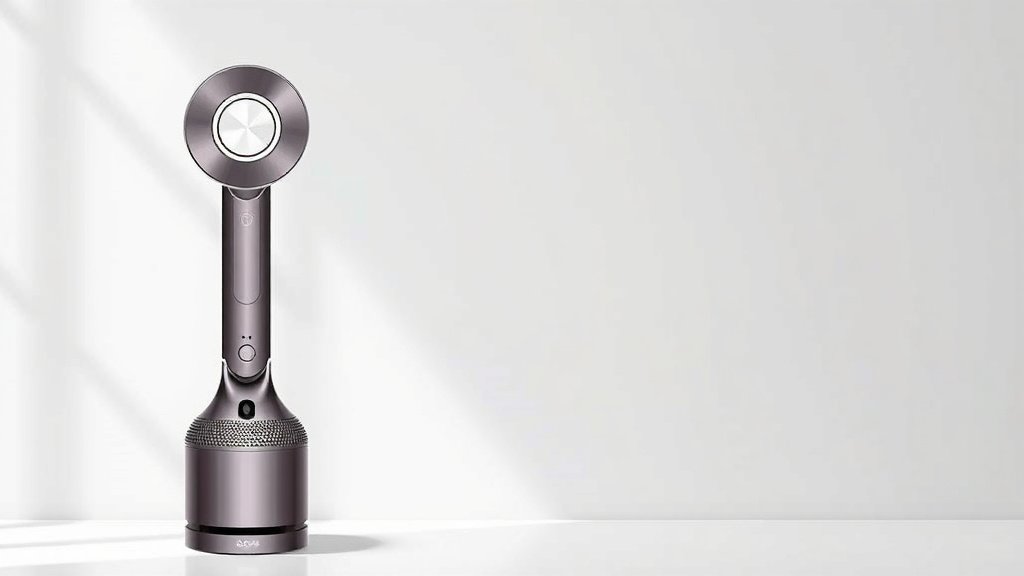
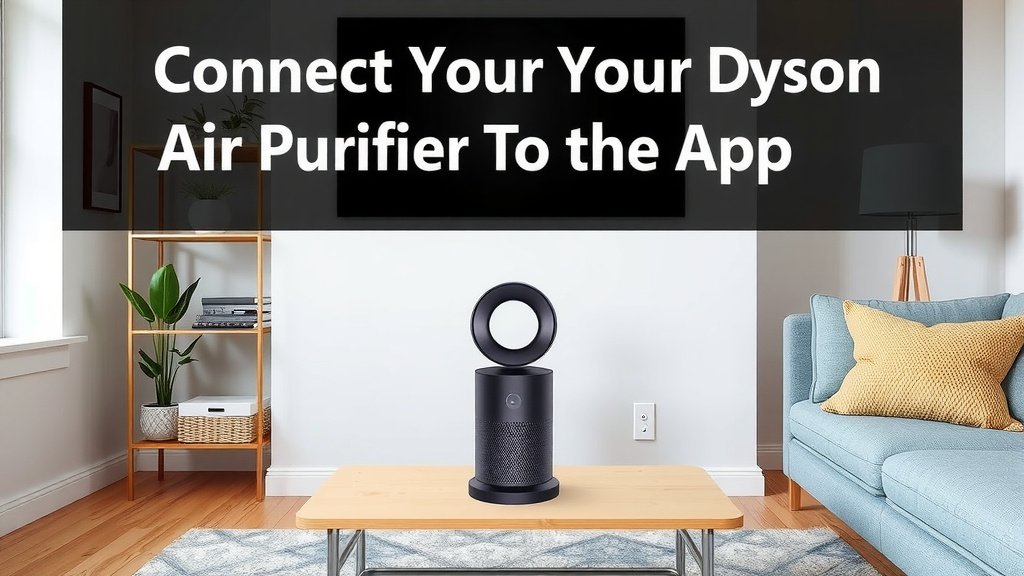
Connect Your Dyson Air Purifier To The App Easily
Connecting your Dyson air purifier to the app is a straightforward process. You’ll generally need to download the Dyson Link app and follow the on-screen instructions to pair your device. This lets you control your purifier remotely and access its smart features.
Once connected, you can do more than just turn your Dyson purifier on and off. You can monitor air quality in real-time, set schedules, and even receive filter notifications. It truly makes managing your home’s air much simpler and more effective.
- Download the Dyson Link app.
- Ensure your purifier and phone are on the same Wi-Fi network.
- Follow the app’s step-by-step pairing guide.
- You can then control your purifier remotely.
Ready to get your Dyson air purifier connected? Let’s walk through exactly how this works, step by step, so you can start enjoying all the smart benefits.
Connecting Your Dyson Air Purifier to the App
You’re probably wondering what’s involved in getting your Dyson air purifier hooked up to its smart app. It’s actually simpler than you might think, and it opens up a whole new world of control over your home’s air quality. Think of it like giving your purifier a direct line to your smartphone. We found that the process is designed to be as user-friendly as possible.
Getting Started: What You’ll Need
Before you dive in, let’s make sure you have everything ready. This will make the whole experience smoother. You’ll definitely want your Dyson air purifier nearby. Of course, you’ll also need your smartphone or tablet. This is what you’ll use to control everything.
- Your Dyson air purifier (powered on)
- Your smartphone or tablet
- Your home Wi-Fi network name and password
Downloading the Dyson Link App
The first major step is getting the right app. Dyson uses a specific app for most of its connected products. You’ll want to download the Dyson Link app. You can find it easily in your device’s app store. Just search for “Dyson Link.”
This app is your central hub for all things Dyson. It’s where you’ll manage your device, check its status, and access all the smart features. We recommend downloading it before you start the pairing process to save time.
Ensuring a Smooth Connection: Wi-Fi Basics
This is a really important part of the setup. For your Dyson air purifier to talk to the app, it needs to be on the same network as your phone. This means both your purifier and your smartphone should be connected to your home Wi-Fi network.
If you have a dual-band router (which is very common now), you might need to ensure your phone is connected to the 2.4 GHz band. Many smart devices, including some Dyson purifiers, prefer this band for initial setup. You can usually see this option in your phone’s Wi-Fi settings. We found this to be a common troubleshooting step for many smart home devices.
Double-check your Wi-Fi password too. It’s easy to make a typo! A strong, stable Wi-Fi signal is key for uninterrupted control and data flow.
The Pairing Process: Step-by-Step
Now for the fun part: actually connecting your purifier to the app. Dyson has made this very intuitive. You’ll be guided through each stage.
Initiating Pairing Mode on Your Purifier
Your Dyson air purifier needs to be in a special mode to be found by the app. The exact way to do this can vary slightly by model, but generally, it involves pressing and holding a button on the device.
Look for the Wi-Fi button on your purifier. It might be a dedicated button, or it could be part of the control panel. You’ll typically need to press and hold this button for about five seconds. The Wi-Fi indicator light on the purifier should start to blink. This blinking light signals that it’s ready to pair.
Following the In-App Guide
Once the purifier is in pairing mode, switch over to your smartphone and open the Dyson Link app.
You’ll likely see an option to “Add product” or a “+” icon. Tap on that. The app will then start searching for nearby Dyson devices. When it finds your purifier (which should happen quickly if it’s in pairing mode), select it from the list.
The app will then prompt you to confirm your Wi-Fi network and enter your password. This is where having your network name and password handy really pays off. Just follow the on-screen prompts. You’ll see confirmation messages as the connection is established.
What to Do If Pairing Fails
Sometimes, technology throws us a curveball. If your purifier doesn’t connect on the first try, don’t get discouraged! Here are a few things we suggest checking:
- Reboot everything: Turn off your purifier, turn off your phone’s Wi-Fi, and restart your router. Then, turn everything back on and try again.
- Check Wi-Fi band: Make sure your phone is connected to the 2.4 GHz band if that’s what your purifier prefers.
- Distance matters: Ensure your phone and purifier are relatively close to your Wi-Fi router during the setup.
- App permissions: Check that the Dyson Link app has the necessary permissions on your phone (like location services and local network access).
Many common issues are resolved with these simple steps. We found that sometimes, simply waiting a minute and trying the pairing process again can work wonders.
Exploring the App’s Features
Congratulations, you’re connected! Now you can really start to experience the smart side of your Dyson air purifier. The app offers a wealth of features that go far beyond a simple on/off switch.
Real-Time Air Quality Monitoring
One of the most powerful features is the ability to see your indoor air quality in real time. The app displays data for various pollutants like PM2.5, VOCs, NO2, and humidity. You can see a clear, easy-to-understand breakdown of what’s happening in your environment. Many sources, like the EPA, highlight the importance of monitoring indoor air quality for health.
This information helps you understand when your purifier is working hardest and when your air is cleanest. You can literally see the difference it makes.
Remote Control and Scheduling
Forget having to get up to adjust settings. With the app, you can control your purifier from anywhere. Change fan speeds, switch modes, or turn it off completely, all from your phone.
You can also set schedules. Want your purifier to run on a lower setting overnight? Or ramp up before you get home from work? You can create custom schedules to fit your lifestyle. This kind of automation really helps optimize your home’s air quality without you having to think about it.
Filter Notifications and Maintenance
Another handy feature is filter monitoring. Your Dyson purifier will let you know when it’s time to replace or clean its filters. The Dyson Link app will provide notifications and guidance on filter maintenance. This ensures your purifier always operates at peak performance.
Keeping your filters in good condition is essential for effective air purification. We found that these reminders prevent you from having to guess or remember filter change dates yourself.
Troubleshooting Checklist for Connectivity
If you’re still having trouble, run through this quick checklist:
- Is your purifier plugged in and powered on?
- Is your smartphone connected to your home Wi-Fi?
- Is your purifier within range of your Wi-Fi router?
- Have you tried restarting your router, phone, and purifier?
- Are you using the correct Wi-Fi password?
- Is the Dyson Link app updated to the latest version?
By following these steps, you should be able to get your Dyson air purifier seamlessly connected and enjoy all the benefits of smart air quality management in your home.
Conclusion
Connecting your Dyson air purifier to the Dyson Link app unlocks its full smart potential. You’ve learned how to download the app, ensure your Wi-Fi is ready, and guide your purifier through the simple pairing process. Now you can monitor air quality live, control your device from afar, and set helpful schedules. You’re all set to enjoy cleaner, smarter air in your home. Your next step is to open the Dyson Link app and start customizing your air quality experience today!
Frequently Asked Questions
Can I connect my Dyson air purifier if I only have a 5 GHz Wi-Fi network?
Most Dyson air purifiers are designed to connect to a 2.4 GHz Wi-Fi network, especially for the initial setup. If you only have a 5 GHz network, you might need to check your router settings to see if you can enable the 2.4 GHz band or if your specific Dyson model supports 5 GHz connectivity.
What should I do if my Dyson purifier isn’t showing up in the app?
If your purifier isn’t appearing in the app, first ensure it’s powered on and in pairing mode (the Wi-Fi light should be blinking). Also, confirm that your phone is connected to the same 2.4 GHz Wi-Fi network you intend to use for the purifier. Sometimes, simply restarting your router, phone, and purifier can resolve this issue.
Is it possible to control multiple Dyson air purifiers with one Dyson Link app account?
Yes, you can absolutely manage multiple Dyson air purifiers with a single account. Once you’ve connected your first purifier, you can go through the “Add product” process again in the app to link additional devices to your account.
Do I need to be home to connect my Dyson air purifier to the app?
You do not need to be home to initially download and set up the Dyson Link app on your smartphone. However, you will need to be in close proximity to your Dyson air purifier and your home Wi-Fi router during the pairing process to establish the connection successfully.
Will the Dyson Link app work on older Dyson air purifier models?
The Dyson Link app is compatible with most newer Dyson connected air purifiers. For older models, compatibility can vary. It’s always best to check the product specifications for your specific Dyson air purifier model on the Dyson website or in the app store listing to confirm if it supports connection to the Dyson Link app.


![What Is The best mattress for cuddling [In 2026]](https://homeunderstandable.com/wp-content/uploads/2025/12/Best-mattress-for-cuddling.jpg)
![What Is The Best Air Purifier for Cough [In 2026]](https://homeunderstandable.com/wp-content/uploads/2025/06/best-air-purifier-for-cough.jpg)
