Connect Your Levoit Air Purifier to the App Seamlessly
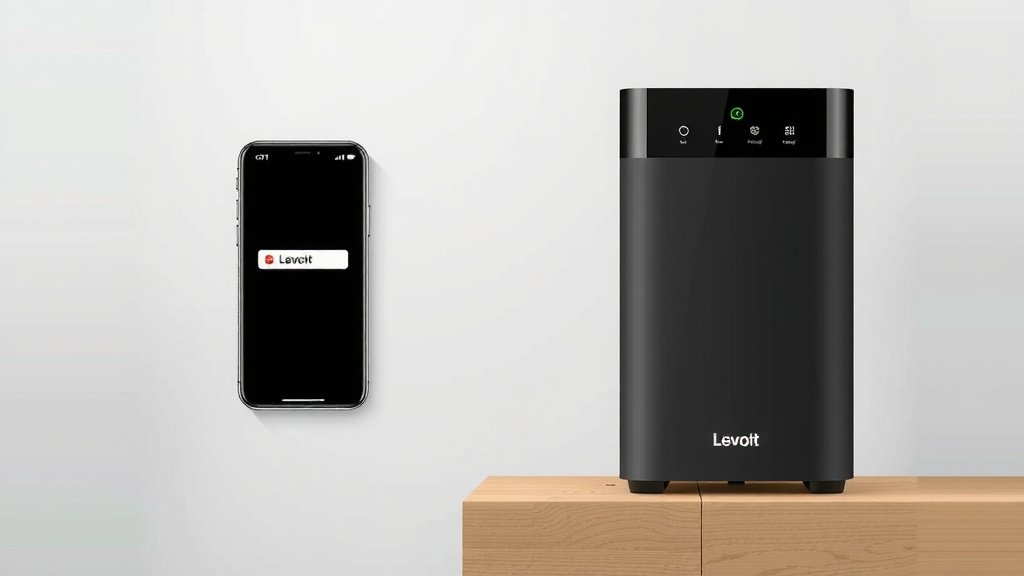
Connecting your Levoit air purifier to the VeSync app is surprisingly straightforward! You can easily control your purifier remotely and access smart features by following a few simple steps. This allows you to monitor air quality and adjust settings from anywhere.
Integrating your Levoit with the app means you’re not just purifying your air; you’re doing it intelligently. Many users find this connectivity a huge convenience for managing their home environment. It puts powerful control right at your fingertips.
- Yes, you can connect your Levoit purifier to the VeSync app.
- This lets you control it from your phone.
- You can check air quality and change settings remotely.
- It’s a great way to manage your home’s air efficiently.
Ready to get your Levoit purifier connected? Let’s walk through the process together, step by step!
Connecting Your Levoit Air Purifier to the VeSync App
Linking your Levoit air purifier to the VeSync app is a smart move. It gives you remote control and access to handy features. You can manage your home’s air quality from anywhere. It’s like having a magic wand for your air!
Getting Started: What You’ll Need
Before you dive in, let’s make sure you have everything ready. This process is quite straightforward. We’ll guide you through each step to ensure a smooth connection.
The VeSync App is Your Command Center
First, you need the VeSync app. It’s available for both iOS and Android devices. Make sure your smartphone or tablet has a stable internet connection. This app is where all the magic happens.
- Download the VeSync app from your device’s app store.
- Create a new account or log in if you already have one.
Your Levoit Air Purifier Needs Wi-Fi
Not all Levoit air purifiers are Wi-Fi enabled. You’ll need a model that specifically supports app connectivity. Check your purifier’s packaging or user manual. It will clearly state if it’s compatible with the VeSync app.
- Ensure your Levoit air purifier model is Wi-Fi enabled.
- Have your home Wi-Fi network name and password ready.
Step-by-Step Guide to Connecting Your Purifier
Now, let’s get down to the actual connection process. We’ve broken it down into simple, manageable steps for you.
Step 1: Power On and Prepare Your Purifier
Plug in your Levoit air purifier and turn it on. You’ll want to place it relatively close to your Wi-Fi router for the initial setup. This helps ensure a strong connection signal during the pairing process.
Step 2: Enter Pairing Mode on Your Purifier
This step is key! You need to put your air purifier into pairing mode. The exact method can vary slightly between models. Usually, you’ll need to press and hold a specific button for a few seconds. For many Levoit models, this is the power button or the Wi-Fi button.
Research and found that holding the button until you see a blinking indicator light confirms pairing mode. This light typically signifies that the purifier is ready to connect.
Finding the Pairing Button
Consult your Levoit air purifier’s user manual if you’re unsure. It will show you precisely which button to press and for how long. Some models might have a dedicated Wi-Fi button, while others use a combination of button presses.
Step 3: Add Your Device in the VeSync App
Open the VeSync app on your smartphone or tablet. Once logged in, look for an option to add a new device. This is often represented by a plus (+) icon. Tap it to begin the process.
Step 4: Select Your Air Purifier Model
The app will present you with a list of Levoit devices. Find and select your specific air purifier model from the list. Make sure you choose the correct one to avoid any confusion.
Step 5: Connect to Your Wi-Fi Network
Next, the app will prompt you to connect to your home Wi-Fi network. You’ll need to enter your Wi-Fi network name (SSID) and password. Double-check that you enter these details correctly, as one wrong character will prevent the connection.
Many experts say that using a 2.4GHz Wi-Fi network is often recommended for smart home devices. While some newer devices support 5GHz, older or simpler smart devices may only work on the 2.4GHz band. Check your router settings if you encounter issues.
Step 6: Wait for the Connection to Complete
The app will now attempt to connect to your air purifier. This process can take a minute or two. You should see a progress indicator in the app. Your air purifier’s indicator light should also change, often becoming solid, to show a successful connection.
Troubleshooting Common Connection Issues
If the connection fails, don’t worry! It happens. Here are a few common fixes we found:
- Restart Everything: Try restarting your air purifier, your router, and your phone. Then, attempt the connection process again.
- Check Wi-Fi Password: Ensure you entered the Wi-Fi password correctly. It’s the most common mistake!
- Signal Strength: Move your purifier closer to the router for setup. A weak signal can cause pairing to fail.
- Device Limit: Some routers have a limit on the number of devices they can connect. Check your router’s settings.
- App and Firmware: Make sure your VeSync app and your air purifier’s firmware are up to date.
What You Can Do Once Connected
Congratulations, you’ve connected your Levoit air purifier! Now you can enjoy all the smart features. It truly enhances your air purification experience.
Remote Control from Anywhere
The most obvious benefit is controlling your purifier remotely. Turn it on or off, adjust fan speeds, or change modes without being in the same room. This is a huge convenience when you’re away from home.
Monitor Air Quality in Real-Time
Many Levoit models connected via the app display real-time air quality data. You can see the levels of PM2.5 and other pollutants. This helps you understand your home’s air quality at a glance.
Set Schedules and Timers
Want your purifier to run at specific times? You can set custom schedules. For instance, schedule it to run on high while you’re out and switch to a quieter mode in the evening. Timers can also be set for automatic shut-off.
Receive Filter Life Alerts
The VeSync app will notify you when your air filter needs replacing. This ensures your purifier always runs at peak performance. You won’t have to guess when it’s time for a new filter.
We found that having these alerts is incredibly helpful. It takes the guesswork out of maintenance and ensures you’re always breathing the cleanest air possible, just as guidelines from organizations like the EPA suggest for maintaining indoor air quality.
Voice Control Integration
Some Levoit purifiers also integrate with voice assistants like Amazon Alexa or Google Assistant. Once connected to VeSync, you can often link it to your preferred voice assistant for hands-free control. Saying “Hey Google, turn on my air purifier” is pretty neat!
Quick Checklist for Connection Success
Here’s a handy checklist to ensure you’ve got everything covered:
- VeSync app downloaded and account created.
- Wi-Fi enabled Levoit air purifier model.
- Purifier powered on and in pairing mode.
- Correct Wi-Fi network name and password entered.
- Device successfully added in the VeSync app.
- Purifier indicator light shows a stable connection.
Conclusion
You’ve now got the knowledge to connect your Levoit air purifier to the VeSync app. This smart integration puts you in complete control of your home’s air quality. You can monitor, adjust, and schedule your purifier from anywhere. It’s a simple process that greatly enhances your air purification experience. Don’t wait – get your purifier connected today and start enjoying smarter, cleaner air!
Frequently Asked Questions
Why isn’t my Levoit air purifier connecting to the VeSync app?
If you’re facing connection issues, try restarting your purifier, router, and phone. Double-check your Wi-Fi password for typos, as this is a common mistake. Ensure your purifier is within strong signal range of your router during setup.
Do I need a special Levoit air purifier to use the app?
Yes, you do. Not all Levoit air purifiers are Wi-Fi enabled. You must have a model that specifically supports app connectivity. Check your purifier’s manual or packaging to confirm it’s compatible with the VeSync app.
What type of Wi-Fi network should I use?
For most smart home devices, including Levoit purifiers, a 2.4GHz Wi-Fi network is recommended. Some newer models might support 5GHz, but older or simpler devices often only work on the 2.4GHz band. Consult your router settings if you encounter problems.
How do I put my Levoit air purifier into pairing mode?
Typically, you’ll need to press and hold a specific button on your purifier for a few seconds until an indicator light starts blinking. This is often the power button or a dedicated Wi-Fi button. Your user manual will provide the exact instructions for your model.
Can I control multiple Levoit air purifiers with the VeSync app?
Yes, you can. The VeSync app is designed to manage multiple Levoit smart devices. You can add and control several air purifiers, as well as other compatible Levoit products, all from a single account.
![5 Best Air Purifier for Dog Allergies [In 2026]](https://homeunderstandable.com/wp-content/uploads/2025/06/best-air-purifier-for-dog-allergies-top-picks-for-pet-owners-768x512.jpg)