Set Up Your Dyson Air Purifier: A Simple Guide
Setting up your Dyson air purifier is quite simple and can be done in a few easy steps. The core setup involves plugging it in, connecting to Wi-Fi via the Dyson Link app, and placing it in an optimal location. You’ll want to ensure it has good airflow around it for the best results. Properly setting it up helps maximize its ability to **purify your air** and monitor air quality.
Once you’ve unpacked your Dyson, the initial physical setup is straightforward. Connecting it to your home network via the Dyson Link app unlocks its smart features, allowing remote control and detailed air quality reports. Choosing the right spot for your purifier is also important for efficient operation, ensuring it can effectively circulate and clean the air in your room.
- Unpack and remove all packaging.
- Plug in the power cord.
- Download the Dyson Link app.
- Connect your purifier to Wi-Fi.
- Place it in an open area.
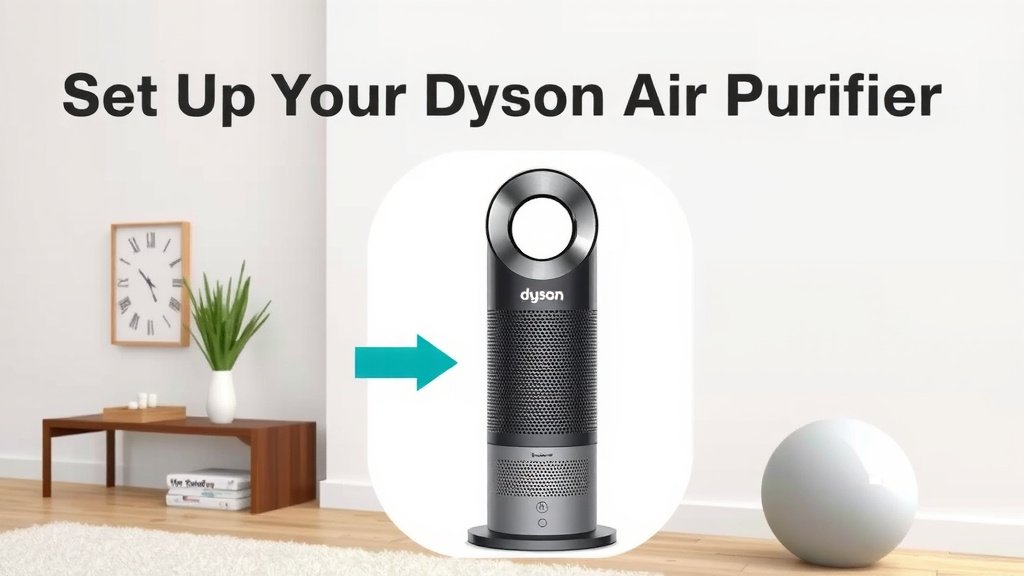
Ready to get your Dyson air purifier up and running? Let’s walk through the simple steps to get your home breathing cleaner air in no time.
Getting Your Dyson Air Purifier Set Up and Running
You’ve got your new Dyson air purifier, and you’re ready to enjoy cleaner air. That’s fantastic! Setting it up is designed to be a breeze. We’ll walk you through each step, from unboxing to connecting it to your smart home. Let’s get this done quickly so you can start breathing easier.
Initial Unboxing and Physical Setup
First things first, let’s get it out of the box. Carefully open the packaging. You’ll want to remove all the protective materials. Make sure to check inside the unit and around the filter for any stray tape or plastic wrap. Sometimes, the filter comes in its own packaging. Removing all of this is **key for proper airflow** and function. Grab your user manual, too; it’s your trusty sidekick for any questions.
Where to Place Your Purifier for Maximum Effectiveness
The placement of your Dyson air purifier can make a big difference in how well it works. You want to give it **plenty of room to breathe**. Think of it like a person needing space to exercise. If it’s crammed into a corner or behind furniture, its ability to circulate and clean the air is limited. Aim for an open area where air can flow freely around the machine.
Optimal Clearance Around the Unit
Most Dyson models recommend at least a foot of clearance on all sides. This means keeping it away from walls, curtains, and large objects. The intake vents are usually on the sides or back, and the purified air is expelled from the top. Giving it this breathing room ensures it can **effectively draw in air**, filter it, and release clean air back into your room. We found that placing it near where you spend the most time, like a living room or bedroom, makes the most impact.
Avoiding Obstructions and Heat Sources
It’s also wise to keep your purifier away from direct heat sources, like radiators or direct sunlight. Heat can affect its sensors and potentially its performance. You wouldn’t want to run a powerful fan right next to a heater, right? Same principle applies here. A clear path for air means a **cleaner, healthier environment** for you.
Connecting to Your Wi-Fi and the Dyson Link App
This is where the “smart” in your smart air purifier comes to life. Connecting to Wi-Fi allows you to control your purifier remotely and get detailed information about your home’s air quality. You’ll need your Wi-Fi network name and password handy.
Downloading and Installing the Dyson Link App
First, you’ll need to download the Dyson Link app onto your smartphone or tablet. It’s available for both iOS and Android devices. Just search for “Dyson Link” in your device’s app store. Once downloaded, open the app and follow the on-screen prompts to create an account or log in if you already have one. This app is your **command center for all things Dyson**.
Pairing Your Purifier with the App
With the app open and your purifier plugged in, it’s time to pair them. The app will guide you through finding your purifier. You might need to press a button on the purifier itself to put it into pairing mode. Often, this involves holding down a specific button for a few seconds. The app will then search for your device. Once found, select your home Wi-Fi network and enter your password. Many experts say this connection is **vital for accessing smart features** and receiving firmware updates (Dyson Support). After a successful connection, your purifier will appear in the app.
Understanding the App’s Features
The Dyson Link app is pretty intuitive. You can turn the purifier on or off, adjust fan speed, set schedules, and change modes like Auto mode or Night mode. It also shows you real-time air quality data, breaking down the types of pollutants detected. You can even see historical data to track your air quality over time. This **level of detail is incredibly useful** for understanding your home’s environment.
Troubleshooting Common Connection Issues
If you run into trouble connecting, don’t worry! First, double-check that you entered your Wi-Fi password correctly. Sometimes, a simple typo is the culprit. Ensure your purifier is within range of your Wi-Fi router. If the problem persists, try restarting both your purifier and your router. You can also try resetting the Wi-Fi settings on your purifier. The app’s help section often has specific troubleshooting tips, and Dyson’s customer support is there to help if you get truly stuck. A stable connection means **consistent air purification**.
Basic Operation and Filter Maintenance
Once set up, your purifier is ready to go! You can control it directly on the unit or via the app. Understanding the basics ensures you’re getting the most out of it.
Using Your Purifier in Auto Mode
Auto mode is a fantastic feature. Your Dyson purifier uses its sensors to monitor air quality. It will then automatically adjust its fan speed to tackle any detected pollutants. This means you don’t have to constantly fiddle with settings. It’s like having a little air quality guardian working for you 24/7. We found this mode to be the **most convenient for daily use**.
When to Check and Replace Filters
Filters don’t last forever, and they are the heart of your purifier. Your Dyson Link app will alert you when your filter needs replacing. You’ll also see an indicator on the machine itself. Ignoring this means the filter can’t effectively trap pollutants anymore. Many sources suggest replacing filters according to manufacturer recommendations to maintain optimal performance (Environmental Protection Agency). Skipping this step can reduce purification efficiency and even **impact your indoor air quality**.
Here’s a quick checklist to ensure you’re all set:- Unpack all components carefully.
- Ensure the filter is correctly installed.
- Place the purifier in an open, clear area.
- Download and set up the Dyson Link app.
- Connect your purifier to your home Wi-Fi network.
- Familiarize yourself with Auto mode for easy operation.
Conclusion
You’ve successfully set up your Dyson air purifier! We’ve covered the essential steps from unboxing to connecting it with the Dyson Link app. Proper placement and Wi-Fi connection are key to maximizing its performance. Now your purifier can work its magic, continuously monitoring and cleaning your home’s air. Take a moment to enjoy the cleaner air you’ve just enabled. Your next step is to let your purifier run in Auto mode and familiarize yourself with the app’s air quality reports. You’ve done great!
Frequently Asked Questions
How do I know if my Dyson air purifier filter needs to be replaced?
Your Dyson Link app will send you a notification when it’s time to replace the filter. You’ll also often see an indicator light directly on the purifier unit itself. Following these alerts ensures your purifier maintains peak performance.
Can I use my Dyson air purifier without connecting it to Wi-Fi?
Yes, you can! Your Dyson air purifier will still function for basic purification without a Wi-Fi connection. However, you won’t be able to access smart features like remote control or detailed air quality reporting through the Dyson Link app.
What’s the best way to clean my Dyson air purifier?
For general cleaning, you can gently wipe down the exterior of the purifier with a soft, dry cloth. Always unplug the unit before cleaning. For filter maintenance, refer to your user manual as they are typically replaced, not cleaned.
Why is placing the purifier in an open area so important?
Placing your purifier in an open area with at least a foot of clearance on all sides allows for optimal airflow. This ensures the purifier can effectively draw in polluted air, filter it, and distribute clean air throughout your room efficiently.
What if my Dyson air purifier won’t connect to my Wi-Fi network?
First, double-check your Wi-Fi password for typos and ensure your router is within range. Try restarting both your purifier and your Wi-Fi router. If problems persist, consult the Dyson Link app’s help section or contact Dyson support for further assistance.