
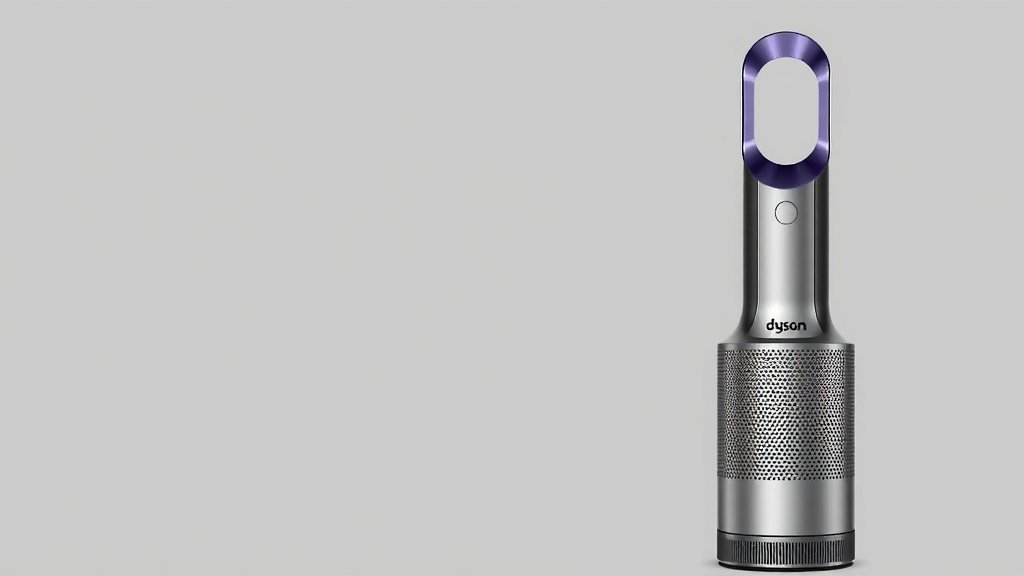
Connect Your Dyson Air Purifier: A Step-by-Step Guide
Connecting your Dyson air purifier to its app is a straightforward process. You’ll typically use your smartphone and the Dyson Link app to get your purifier online. This lets you monitor air quality and control settings remotely, making it super convenient.
Once connected, your Dyson air purifier becomes a smart home device. This connection unlocks features like scheduling, real-time pollution alerts, and detailed historical data. It’s about giving you more control over your home’s environment right from your pocket.
- Connect via the Dyson Link app on your smartphone.
- Use Wi-Fi to link your purifier to the app.
- Control settings and monitor air quality remotely.
- Schedule purification times for convenience.
- Receive alerts about your home’s air pollution levels.
Let’s walk through the simple steps to get your Dyson air purifier connected and working with the app. It’s easier than you might think!
You’ve got your shiny new Dyson air purifier, and you’re ready to breathe easier. That’s fantastic! Connecting it to your home Wi-Fi is the key to unlocking its full smart potential. It’s like giving your purifier a direct line to your phone, so you’re always in the loop about your home’s air quality, no matter where you are.
Getting Your Dyson Air Purifier Connected to Wi-Fi
Connecting your Dyson air purifier is primarily done through the Dyson Link app. This app acts as the central hub for all your connected Dyson devices. You’ll need a smartphone or tablet and your home Wi-Fi network details to get started. It’s designed to be user-friendly, even if you’re not a tech wizard.
Before You Begin: What You’ll Need
Let’s make sure you have everything ready. This quick check will save you time and frustration down the line. Think of it like gathering your ingredients before you start cooking.
- A compatible smartphone or tablet (iOS or Android).
- Your home’s 2.4GHz Wi-Fi network name (SSID) and password.
- Ensure your Dyson air purifier is plugged in and powered on.
- Download the latest version of the Dyson Link app from your device’s app store.
Downloading and Setting Up the Dyson Link App
First things first, you need the app! If you haven’t already, head over to the Apple App Store or Google Play Store and search for “Dyson Link.” Download and install the app. Once it’s on your device, open it up. You’ll be prompted to create a Dyson account or log in if you already have one. This account is essential for managing your devices and personalizing your experience.
Creating Your Dyson Account
If you’re new to the Dyson ecosystem, creating an account is simple. You’ll typically provide an email address and create a password. Follow the on-screen instructions. It’s usually a quick process. This account links your devices to your profile, allowing for personalized settings and notifications.
Connecting Your Dyson Air Purifier to the App
Now for the main event! Connecting your purifier to the app is where the magic happens. The app will guide you through this, but here’s a general overview of what to expect.
Initiating the Connection Process
Open the Dyson Link app and tap the button to add a new device. It might say something like “Add Product” or have a plus (+) icon. The app will then ask you to select the type of Dyson product you’re adding. Choose “Air Purifier.”
Putting Your Purifier in Pairing Mode
This is a critical step. Your Dyson air purifier needs to be in a special mode so your phone can find it. Check the manual that came with your specific model, as the exact button combination can vary. Often, you’ll need to press and hold a specific button on the purifier itself for a few seconds until an indicator light starts blinking. This blinking light signifies that it’s ready to pair.
For many Dyson models, this involves pressing and holding the standby on/off button. You’ll see a Wi-Fi symbol or a blinking light appear on the unit’s display. This tells you it’s actively looking to connect.
Selecting Your Wi-Fi Network and Entering Password
Once your purifier is in pairing mode, your phone should detect it through the app. You’ll then be prompted to select your home Wi-Fi network from a list of available networks. Make sure you choose your 2.4GHz network, as most Dyson purifiers aren’t compatible with 5GHz networks. After selecting your network, carefully enter your Wi-Fi password. Double-check it for typos; passwords are case-sensitive!
Waiting for the Connection to Complete
The app will now attempt to connect your purifier to your Wi-Fi network. This might take a minute or two. You’ll usually see a progress indicator in the app. On your purifier, the Wi-Fi indicator light will likely change from blinking to solid once the connection is successful. The app will confirm that your device has been added successfully.
Troubleshooting Common Connection Issues
Sometimes, things don’t go perfectly the first time. Don’t worry, most connection problems are easy to fix! We’ve found that a few common hurdles trip people up.
Wi-Fi Network Compatibility
As mentioned, Dyson purifiers typically only work with 2.4GHz Wi-Fi networks. If your router broadcasts both 2.4GHz and 5GHz, ensure you’re connecting to the 2.4GHz band. You might need to check your router’s settings or your internet provider’s documentation for this. Many modern routers have separate names for each band (e.g., “MyHomeWiFi” and “MyHomeWiFi_5G”).
Incorrect Wi-Fi Password
This is incredibly common! A single typo can prevent the connection. Try re-entering your Wi-Fi password very carefully. If you’re unsure of your password, you can often find it on a sticker on your router or by checking your router’s administration page. We often recommend writing it down so you don’t have to guess.
Router Distance and Signal Strength
Is your air purifier too far from your Wi-Fi router? A weak signal can cause connection problems. Try moving the purifier closer to the router temporarily to see if that helps establish the connection. If signal strength is an issue, you might consider a Wi-Fi extender.
App and Device Updates
Ensure both the Dyson Link app and your purifier’s firmware are up to date. Sometimes, older versions can have compatibility issues. The Dyson Link app will usually notify you if a firmware update is available for your purifier once it’s connected. You can often initiate these updates directly through the app.
A Quick Checklist for a Smooth Connection
Let’s recap the essential steps to get your Dyson air purifier online. Tick these off as you go!
- Download the Dyson Link app and create an account.
- Ensure your purifier is plugged in and powered on.
- Put your purifier into pairing mode (check your manual).
- Select your 2.4GHz home Wi-Fi network.
- Enter your Wi-Fi password accurately.
- Confirm the connection via the app and solid Wi-Fi light on the purifier.
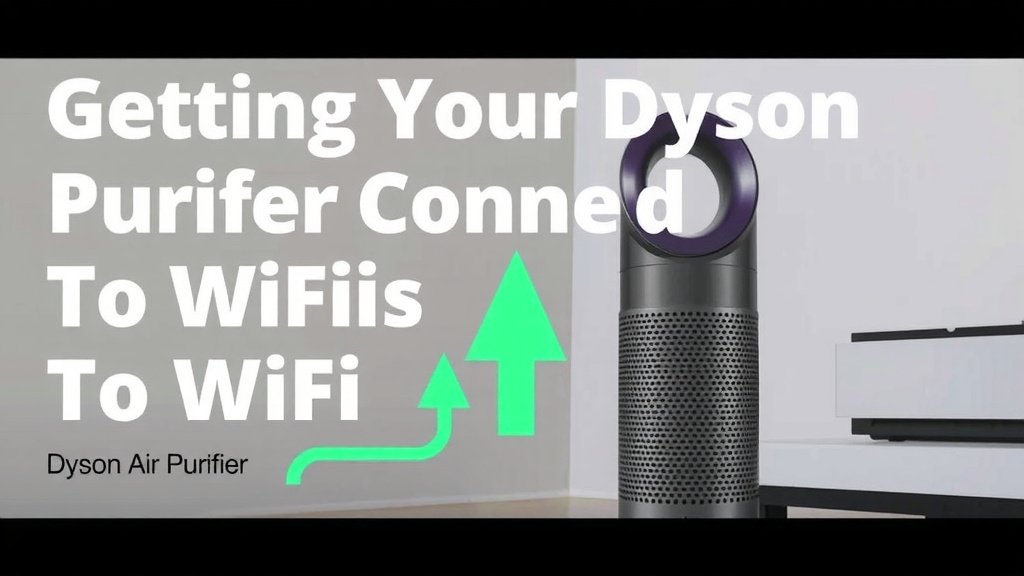
Conclusion
You’ve successfully connected your Dyson air purifier, and you’re ready to experience cleaner air with smart control. You now have the power to monitor your home’s air quality and adjust settings from anywhere. This connection makes managing your environment simpler and more informed. Remember to keep your Dyson Link app and purifier’s firmware updated for the best performance. Enjoy the peace of mind that comes with a smarter, healthier home environment, all at your fingertips.
Frequently Asked Questions
What if my Dyson air purifier won’t enter pairing mode?
Ensure your purifier is plugged in and powered on. You might need to press and hold the standby on/off button for a bit longer than you initially thought. Consult your specific model’s manual for the exact button combination, as it can vary slightly between models.
Can I connect my Dyson air purifier to a 5GHz Wi-Fi network?
Generally, Dyson air purifiers are designed to connect to 2.4GHz Wi-Fi networks only. If your router broadcasts both 2.4GHz and 5GHz bands, you must select the 2.4GHz option during setup. Your purifier will not connect to the 5GHz band.
My Dyson Link app isn’t finding my purifier, what should I do?
First, make sure your purifier is in pairing mode and your phone’s Bluetooth and Wi-Fi are enabled. Try restarting both your purifier and your smartphone. Also, ensure your purifier is within a reasonable range of your Wi-Fi router for a strong signal.
How do I update my Dyson air purifier’s firmware?
Once your purifier is successfully connected to the Dyson Link app, the app will typically notify you if a firmware update is available. You can usually initiate these updates directly through the app’s settings menu for your device. It’s important to keep it updated for optimal performance.
What should I do if I forgot my Wi-Fi password?
If you’ve forgotten your Wi-Fi password, you can usually find it on a sticker located on your Wi-Fi router itself. Alternatively, you might need to access your router’s settings through a web browser or contact your internet service provider for assistance. Double-check it for accuracy when entering it into the app.
![5 Best Air Purifier for Cat Pee Smell [In 2026]](https://homeunderstandable.com/wp-content/uploads/2025/06/best-air-purifier-for-cat-pee-smell.jpg)