Connect Blueair Purifier to Wi-Fi: A Step-by-Step Guide
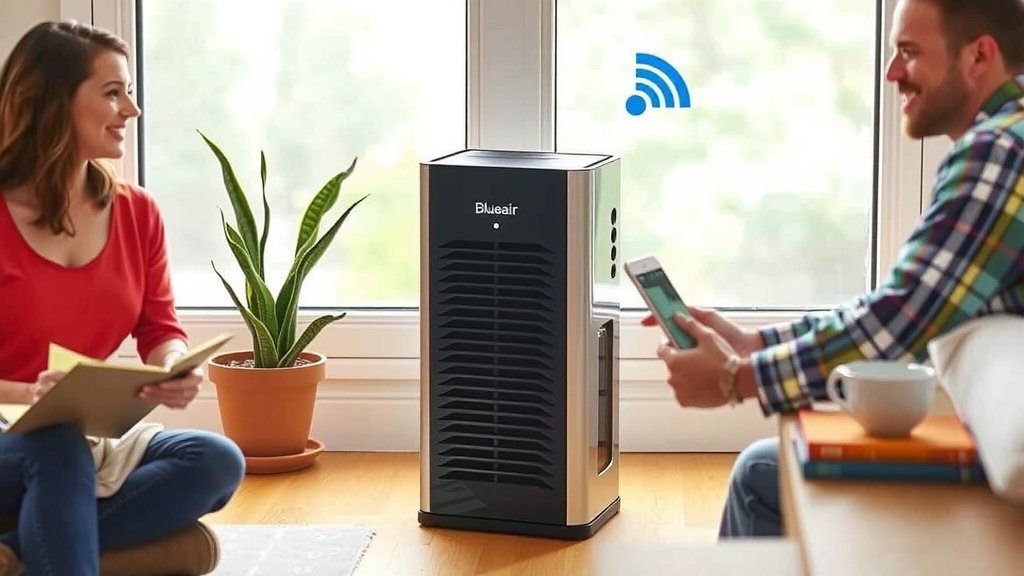
Connecting your Blueair air purifier to Wi-Fi is a straightforward process that unlocks smart features. You can typically do this using the Blueair app on your smartphone or tablet. This connection allows for remote control and access to air quality data.
Once connected, your purifier can work smarter for your home. You’ll be able to monitor air quality from anywhere. You can also schedule cleanings and receive filter change alerts. Many users find these smart capabilities incredibly convenient for managing their air.
- Connect using the Blueair app.
- Enable remote control of your purifier.
- Monitor indoor air quality data.
- Receive filter replacement notifications.
- Schedule purifier operation times.
Ready to get your Blueair connected? Let’s walk through the simple steps to get your air purifier online so you can start enjoying its smart features.
Getting Your Blueair Purifier Online with Wi-Fi
Connecting your Blueair air purifier to your home Wi-Fi is your first step toward smarter air. This connection allows you to control your purifier from afar. You can also access a wealth of information about your indoor air quality. It’s a simple process that really enhances your experience with the device.
What You’ll Need Before You Start
To get started, you’ll need a few things handy. Make sure your Blueair purifier is plugged in and powered on. You’ll also need your home Wi-Fi network name and password. Most importantly, you’ll need a smartphone or tablet. This device will run the Blueair app, which is key to the whole setup.
Downloading and Setting Up the Blueair App
First things first, you need the Blueair app. You can find it on the Apple App Store for iOS devices or the Google Play Store for Android devices. Just search for “Blueair Friend” or “Blueair Home” depending on your model.
Once you’ve downloaded the app, open it. You’ll likely be prompted to create an account or log in if you already have one. Follow the on-screen instructions to set up your profile. This usually involves entering an email address and creating a password.
Connecting Your Purifier to Wi-Fi Through the App
Now for the main event: connecting your purifier. Open the Blueair app on your smartphone or tablet. You should see an option to “Add Device” or a plus (+) icon.
Initiating the Connection Process
Tap on “Add Device.” The app will then guide you through selecting your specific Blueair model. Look for the model name printed on your purifier. Once you’ve selected it, the app will ask you to put your purifier into pairing mode. This might involve pressing a specific button on the purifier for a few seconds. Consult your purifier’s user manual if you’re unsure how to do this.
Entering Your Wi-Fi Credentials
Your smartphone or tablet will then search for available Wi-Fi networks. You’ll need to select your home Wi-Fi network from the list. Be sure you’re connecting to a 2.4GHz network, as many smart home devices, including Blueair purifiers, do not support 5GHz networks for initial setup.
Next, carefully enter your Wi-Fi password. Double-check it for accuracy. A typo here is the most common reason for connection issues. Once entered, the app will attempt to connect your purifier to your network. This can take a minute or two, so please be patient.
Troubleshooting Common Connection Problems
Sometimes, things don’t go as smoothly as planned. If your Blueair purifier isn’t connecting, don’t panic! There are a few common culprits.
Checking Your Wi-Fi Signal Strength
First, ensure your purifier is within a reasonable range of your Wi-Fi router. Weak signal strength can prevent a stable connection. Try moving the purifier closer to the router, at least temporarily, to see if that helps. Many sources suggest that strong Wi-Fi signal is key for reliable smart device operation (National Institute of Standards and Technology).
Verifying Network Compatibility
Remember, most Blueair purifiers connect via a 2.4GHz Wi-Fi network. If your router broadcasts both 2.4GHz and 5GHz bands, make sure you’re selecting the 2.4GHz option during setup. Some routers combine these bands under one name, which can confuse devices. You might need to access your router’s settings to separate them or ensure the correct band is active.
Restarting Devices and the App
A simple restart can often fix stubborn issues. Try turning off your Blueair purifier, closing the Blueair app completely, and restarting your Wi-Fi router. Wait a few minutes for your router to fully boot up. Then, turn your purifier back on and try the connection process again.
Factory Resetting Your Purifier
As a last resort, you might consider a factory reset of your Blueair purifier. This will return it to its original settings, allowing you to start the connection process from scratch. The procedure for a factory reset varies by model, so refer to your user manual for specific instructions. This step is usually quite effective.
What You Can Do Once Connected
Congratulations, your Blueair purifier is online! Now you can experience all the benefits of its smart capabilities. The Blueair app is your command center for all these new features.
Remote Control Features
You can now turn your purifier on and off from anywhere. Did you forget to turn it off when you left the house? No problem! You can do it from your phone. You can also adjust fan speeds and modes remotely.
Monitoring Air Quality Data
The app provides real-time data on your indoor air quality. It shows you levels of PM2.5, VOCs (volatile organic compounds), and temperature. This information helps you understand what you’re breathing. Many health organizations highlight the importance of monitoring indoor air quality for well-being (Environmental Protection Agency).
Scheduling and Alerts
Set custom schedules for your purifier to run. Want it to turn on an hour before you get home? You can do that. You’ll also receive notifications for filter changes. This ensures your purifier always operates at peak performance.
Quick Checklist for a Smooth Connection
Here’s a quick rundown to help you connect without a hitch:
- Download the Blueair app to your smartphone or tablet.
- Ensure your purifier is powered on and within Wi-Fi range.
- Know your Wi-Fi network name and password.
- Connect to a 2.4GHz Wi-Fi network for setup.
- Follow app prompts carefully for pairing mode.
- Be patient during the connection process.
Conclusion
You’ve now learned how to connect your Blueair air purifier to your Wi-Fi. This process opens up a world of smart control right from your smartphone. You can monitor air quality, adjust settings remotely, and get timely alerts. Don’t let connection issues hold you back. With these steps, you’re ready to enjoy cleaner air and greater convenience.
Your next step is to download the Blueair app and follow the pairing guide. Start enjoying the smarter air purification experience today!
Frequently Asked Questions
Can I connect my Blueair purifier to a 5GHz Wi-Fi network?
Most Blueair purifiers are designed to connect to a 2.4GHz Wi-Fi network for initial setup. Your router might broadcast both 2.4GHz and 5GHz bands. You will need to select the 2.4GHz network during the app’s connection process.
What should I do if the app can’t find my Blueair purifier?
First, ensure your purifier is powered on and within range of your Wi-Fi router. Try closing and reopening the Blueair app. If that doesn’t work, restart your purifier and your Wi-Fi router.
How do I put my Blueair purifier into pairing mode?
The method to enter pairing mode varies slightly by model. Generally, you’ll need to press and hold a specific button on the purifier for a few seconds until an indicator light changes. Always refer to your purifier’s user manual for exact instructions.
Will connecting to Wi-Fi affect my purifier’s performance?
Connecting to Wi-Fi does not negatively impact your purifier’s air cleaning capabilities. Instead, it enhances its functionality by allowing for remote control and access to data. Your purifier will still perform its core function of cleaning your air effectively.
How do I know if my Blueair purifier is successfully connected to Wi-Fi?
Once connected, the Blueair app will confirm the successful pairing. You should also see a Wi-Fi indicator light on your purifier illuminate, showing it’s online. You can then test the connection by trying to control your purifier through the app.

![What Is The Best Air Purifiers for Home [In 2026]](https://homeunderstandable.com/wp-content/uploads/2025/06/best-air-purifiers-for-home-top-picks-for-allergy-relief-and-fresh-air-768x512.jpg)