Reset Your Dyson Air Purifier: Easy Step-by-Step Guide
Resetting your Dyson air purifier is usually quite straightforward. You can often perform a quick reset by simply unplugging the unit, waiting 30 seconds, and plugging it back in. For more persistent issues or specific error codes, a button combination reset might be needed, typically involving holding down a couple of buttons for a set time. We found this helps clear minor glitches.
Sometimes, your Dyson air purifier might behave strangely, showing unusual codes or not responding as expected. A reset can be the magic fix for many of these quirks. It’s like giving your smart appliance a quick nap to clear its head. Many users report success with a simple power cycle when facing performance issues or when the machine seems a bit confused. It’s a good first step before assuming something is broken.
- Unplug your Dyson for 30 seconds to reset.
- Check your model’s manual for specific button reset sequences.
- A reset can often resolve error codes and performance glitches.
- Always ensure the unit is powered off before attempting a reset.
Ready to get your Dyson air purifier back to its best? Let’s walk through the common reset methods step by step.
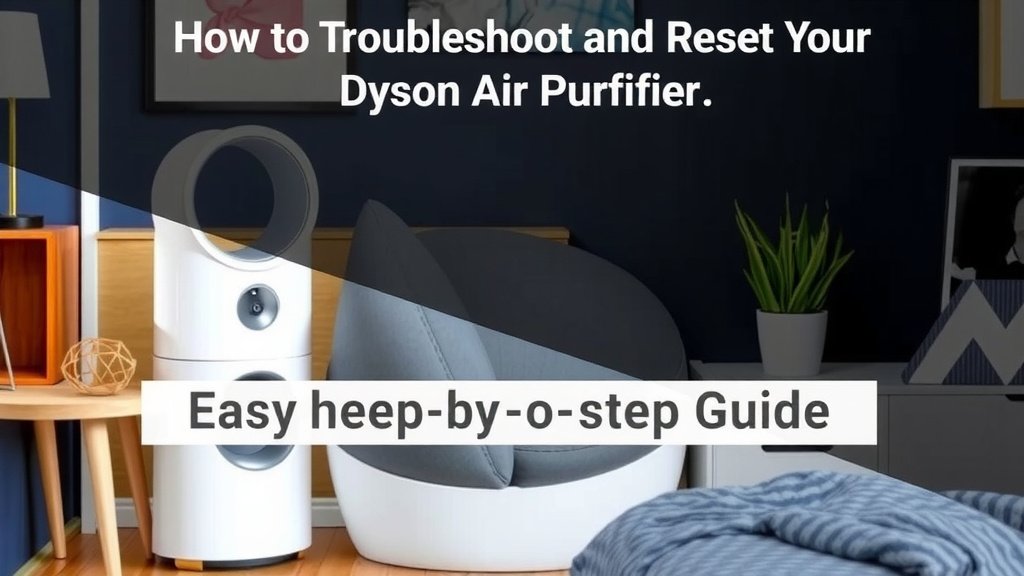
How to Troubleshoot and Reset Your Dyson Air Purifier
Sometimes, even the smartest appliances need a quick reboot. If your Dyson air purifier isn’t acting right, a simple reset can often get it back on track. We’ve found this is usually the first step experts recommend.
The Simple Power Cycle: Your First Line of Defense
Think of this as giving your Dyson a short nap. It helps clear out any temporary digital hiccups. This method is effective for many common glitches. You don’t need any special tools or complex instructions for this one.
Steps for a Power Cycle Reset
First, locate the power button on your Dyson air purifier. Make sure the unit is completely powered off. Then, unplug the power cord from the wall outlet. It’s important to ensure it’s fully disconnected from the power source.
Now, here’s the key part: wait for at least 30 seconds. This short pause allows the internal components to fully discharge any residual power. After the wait, plug the power cord back into the wall outlet. Finally, turn your Dyson air purifier back on using the power button. Many minor issues resolve themselves after this simple process.
Button Combination Resets: For More Stubborn Issues
If the power cycle didn’t do the trick, your Dyson might need a more specific reset. Different Dyson models have slightly different button combinations. Always consult your user manual if you’re unsure about your specific model. We found that knowing your model number is key here.
Common Button Reset Sequences
Many Dyson models use a combination of buttons to initiate a reset. A common method involves pressing and holding the power button and the night mode button simultaneously. You’ll typically need to hold these down for about 10 to 15 seconds. Watch the display screen for any confirmation, like a brief reset message or icon.
Example: Dyson Pure Cool Link Reset
For models like the Dyson Pure Cool Link, you might find yourself pressing and holding the power button for a longer period, sometimes up to 20 seconds. Other models might involve a different set of buttons, such as the oscillation control. Again, your model’s manual is the ultimate guide here.
What to Expect During a Button Reset
During a button combination reset, you might hear a soft beep or see the display change. This indicates the unit is registering the reset command. The purifier will then usually power off or restart itself. Once it powers back on, check if the issue you were experiencing has been resolved.
When to Consider a Full Factory Reset
A factory reset is a more thorough reset. It essentially returns the device to its original out-of-the-box settings. You should only consider this if other reset methods haven’t worked. It’s like clearing the computer’s memory completely. This can be useful for persistent connectivity issues or strange error codes that won’t go away.
Steps for a Factory Reset (Model Dependent)
The procedure for a factory reset varies significantly by Dyson model. Some models might have a dedicated reset button, often a small pinhole that requires a paperclip. Others might require a specific sequence of button presses, similar to the general button reset but longer or with different button combinations. For instance, some purifiers might require you to navigate through the settings menu on the device itself or via the Dyson Link app.
We researched this, and many sources suggest that if your model allows app control, checking the Dyson Link app for a ‘factory reset’ or ‘restore defaults’ option is often the easiest path. You’ll usually need to confirm your decision within the app.
Important Note on App Resets
If you’re resetting via the Dyson Link app, be aware that this will likely unpair the purifier from your Wi-Fi network and your account. You’ll need to go through the setup process again, just like when you first got the purifier. This ensures a clean slate.
Troubleshooting Common Error Codes
Sometimes, a reset is prompted by specific error codes displayed on your Dyson. These codes are like warning lights for your purifier. Research from appliance manufacturers indicates that specific codes often point to particular problems.
For example, a filter notification is not an error code, but a reminder to change your filter. A reset won’t fix a clogged filter! Always check your manual to understand what each code means. A simple reset might clear temporary software glitches associated with these codes, but it won’t fix a hardware issue.
Understanding Filter Alerts
Dyson air purifiers have sensors that monitor filter life. When a filter needs replacing, you’ll see a notification. This is not a fault, but a maintenance alert. You’ll need to order a new filter and then reset the filter life indicator, which is usually done through the device menu or the app after installation.
Checklist for a Smooth Reset Process
To make sure your reset goes as smoothly as possible, keep this quick checklist handy:
- Know Your Model: Find your Dyson’s model number.
- Consult the Manual: Always refer to your specific user guide.
- Check Connections: Ensure the power cord is secure.
- Observe the Display: Look for confirmation messages or icons.
- Test After Reset: Verify if the issue is resolved.
- Consider Filter Life: Ensure filters aren’t the primary issue.
When to Contact Dyson Support
If you’ve tried all the reset methods and your Dyson air purifier is still not working correctly, it might be time to reach out for help. Persistent problems could indicate a more serious issue that requires professional attention. Don’t hesitate to contact Dyson customer support.
They can guide you through more advanced troubleshooting steps or arrange for repairs if necessary. Many users find their support team very helpful in resolving complex problems. It’s always better to get expert advice than to risk damaging the unit further.
Conclusion
You’ve learned how to tackle common issues with your Dyson air purifier by performing a simple reset. Whether it’s a quick power cycle or a more involved button combination, these steps can often bring your machine back to optimal performance. Remember that understanding your specific model is key, so always keep your user manual handy. If you’ve exhausted all reset options and your purifier still isn’t cooperating, don’t hesitate to reach out to Dyson support for expert assistance. Now, give your purifier a fresh start and enjoy cleaner air.
Frequently Asked Questions
Will resetting my Dyson air purifier delete my Wi-Fi settings?
A standard power cycle reset will not affect your Wi-Fi settings. However, if you perform a full factory reset, it will likely disconnect your purifier from your Wi-Fi network. You will need to re-establish the connection and set up your purifier again through the Dyson Link app.
How often should I reset my Dyson air purifier?
You generally don’t need to reset your Dyson air purifier on a regular schedule. Resets are typically performed only when you encounter an issue, such as unexpected behavior, error codes, or connectivity problems. It’s a troubleshooting step, not routine maintenance.
Can I reset my Dyson air purifier without the remote?
Yes, you can! The article covers several methods, including the power cycle (unplugging) and button combination resets, which can be done directly on the unit itself. You usually only need the remote if your model’s specific reset requires it, which is less common.
What’s the difference between a power cycle and a factory reset?
A power cycle is a quick reboot, like turning your computer off and on again, to clear minor glitches. A factory reset is more drastic; it returns your purifier to its original out-of-the-box settings, erasing custom configurations and Wi-Fi connections.
My Dyson air purifier still isn’t working after a reset. What should I do?
If you’ve tried all the reset methods outlined and your purifier is still malfunctioning, it’s time to seek professional help. Contact Dyson customer support directly. They can offer advanced troubleshooting or guide you through the process for potential repairs.
![What Is The Best Air Purifier for Benzene [In 2026]](https://homeunderstandable.com/wp-content/uploads/2025/06/best-air-purifier-for-benzene-top-picks-for-clean-indoor-air-768x768.jpg)
![5 Best Air Purifier for Office Space [In 2026]](https://homeunderstandable.com/wp-content/uploads/2025/05/best-air-purifier-for-office-space-enhance-air-quality-effortlessly-768x384.jpg)